
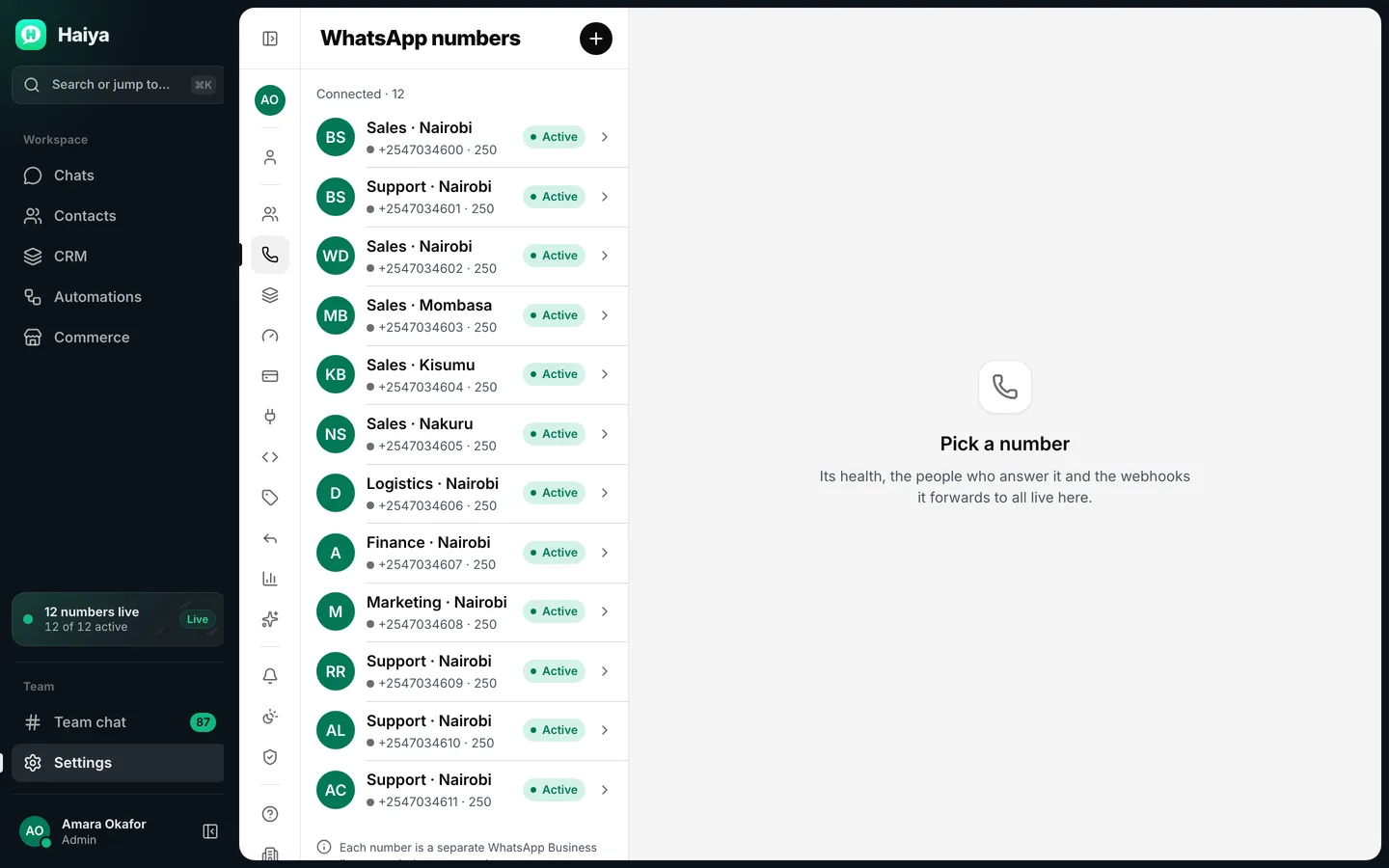
Open WhatsApp numbers and press Connect a number
In Haiya, open Settings, then WhatsApp numbers, and press Connect a number. Expected result: The Connect a WhatsApp number screen opens, with a Before you start list.
This guide takes you from installing Haiya to your first broadcast, in the order that works. You do it in the Haiya app on iPhone, Android or the web; when Meta has to check your number, Haiya opens Meta's window for you. Two things are done on Meta's own screens instead: the payment method for your messages, and business verification when you want to message more people.
Each step opens a short guide. Step 3 depends on where your number is today; the three ways are below. Step 6 usually waits on one thing: Meta approving your first template.
Install Haiya on an iPhone, iPad or Android device, or open it in a browser on your computer.
App Store, Google Play or the web
Choose a plan in the app. The trial lasts 3 days, runs through the App Store or Google Play, and needs a card.
In the app
Settings, WhatsApp numbers, Connect a number. Meta checks the number in its own window, and Haiya sets it up.
In the app, then Meta's window
Add teammates, give each one a role (owner, admin, agent or viewer) and choose the numbers they answer.
In the app
When a customer messages your number, the chat opens in the shared inbox. A customer with no owner waits there until an owner or admin replies or hands the customer to a teammate.
In the app
Write a template, wait for Meta to approve it, choose all contacts, customers, leads or VIPs, then send or schedule.
In the app
Pick the one that describes your number. Whichever it is, you press the same button in Haiya.
For a number that is not on WhatsApp or the WhatsApp Business app today. Meta checks that the number is yours with a code sent by text or call.
In Haiya, open Settings, then WhatsApp numbers, and press Connect a number. Expected result: The Connect a WhatsApp number screen opens, with a Before you start list.
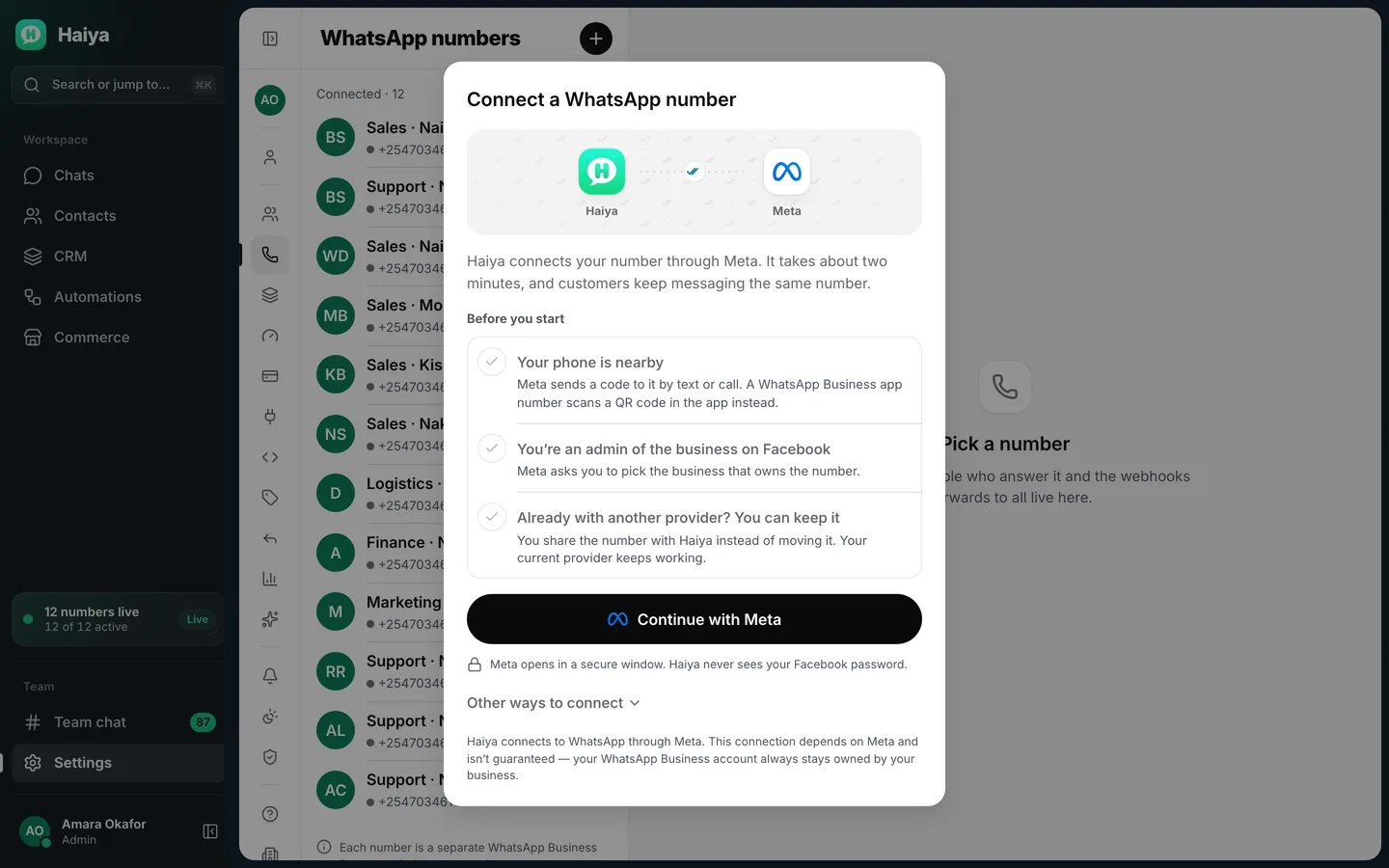
Check the list: your phone is nearby, and you are an admin of the business on Facebook. Then press Continue with Meta. Expected result: A Haiya page, Connect your WhatsApp number, opens. Press Continue with Facebook and Meta's window opens, with Finish in Meta's window showing in Haiya behind it.
This part is on Meta's own screens, in a window Haiya opens. Log in with Facebook, type the number, enter the code Meta sends to it by text or call, pick the business that owns it, keep every permission ticked and press Finish. Expected result: The window closes and Haiya shows Connecting your number.
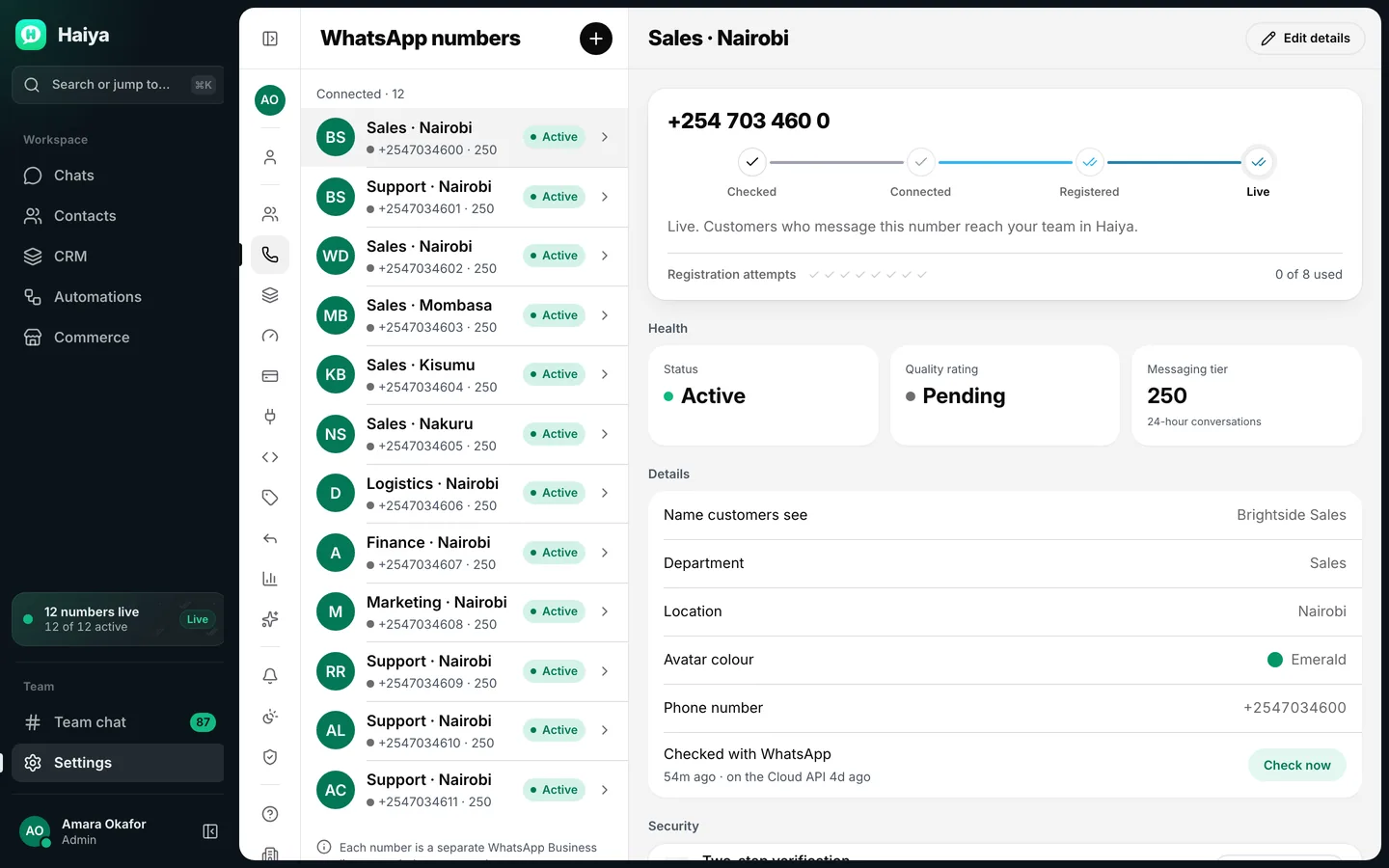
Haiya works through four steps. Keep the screen open; after 12 seconds, Still working and a clock appear, which is normal. Expected result: The number’s page opens and ticks Checked, Connected, Registered and Live.
From another phone, send a WhatsApp message to the number. Expected result: The message appears in Chats, in your team’s shared inbox.
Meta offers a way to keep the WhatsApp Business app working on a number connected to the API, with some app features switched off. Ask us whether it fits your number before you connect it: message us on WhatsApp or write to support@haiya.co.
Meta's guide: onboarding WhatsApp Business app users
Under Meta’s current account model, a number is not moved from one provider to another. Your business shares its WhatsApp account with Haiya instead, and your current provider keeps working until you decide otherwise.
Meta's guide: how WhatsApp accounts are shared with partners
In Haiya, open Settings, then WhatsApp numbers, press Connect a number, then Continue with Meta. Expected result: Meta’s window opens.
In Meta’s window, pick the business that owns the number. When Meta offers it, choose to share your WhatsApp account with Haiya, then finish. Expected result: The window closes and Haiya shows Connecting your number.
Because the number is already registered, Haiya checks it first and does not register it again. Expected result: The number’s page shows its ticks, and a test message from another phone appears in Chats.
Check these before you hand Haiya to the whole team.
Tell us the name of your business and what you were doing when it went wrong. A screenshot helps. Never send a password or an access token.
Cookies on this site
With your permission we use analytics cookies to see how the site is used, and advertising cookies to measure our ads. Nothing is set until you choose, and you can change your mind at any time from cookie settings at the foot of the page. Privacy policy