
Skip to content
  • Built in

Connect WhatsApp to your own system with Custom HTTP.

Save your system's https address and key once as a Custom HTTP account, then call it from any automation with the Call another system step and keep parts of its reply. Your system can also start an automation by calling an incoming-webhook URL.

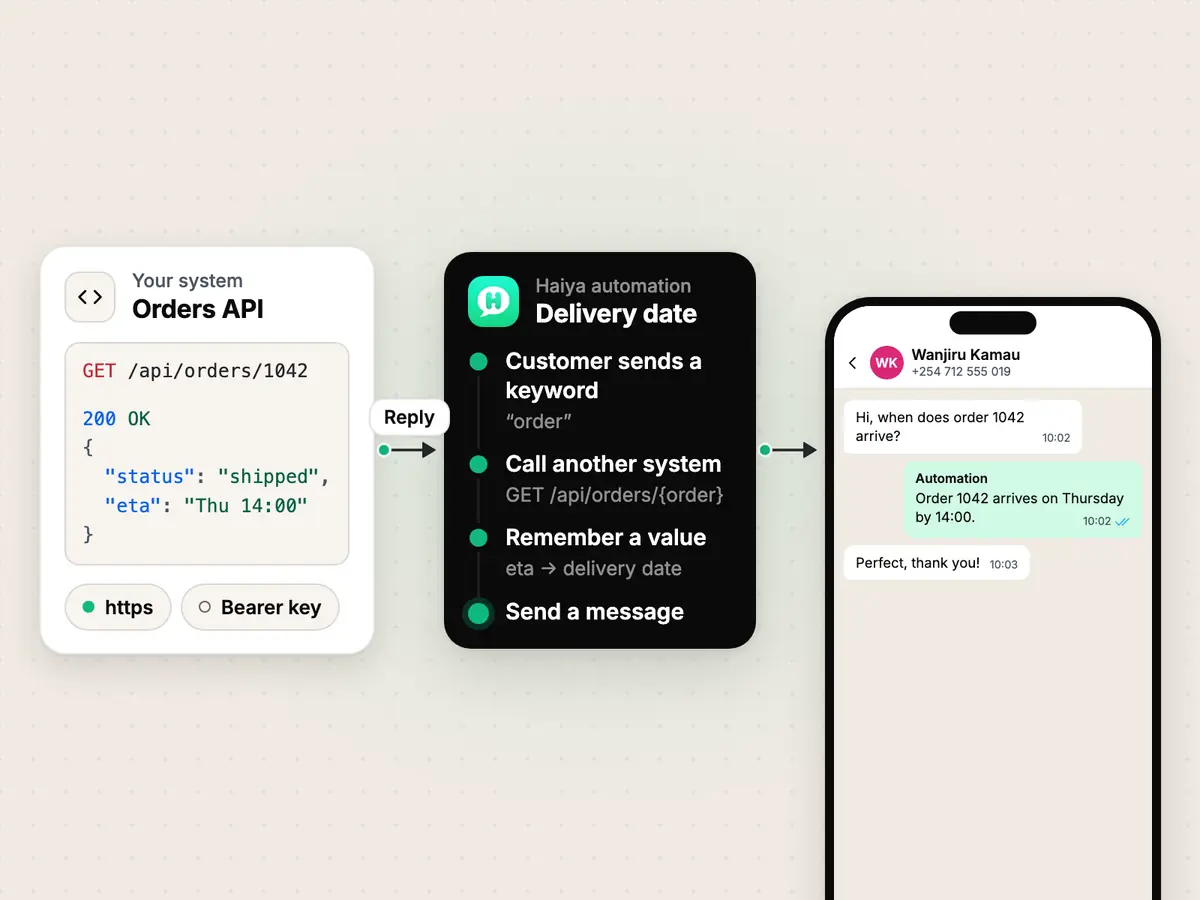
An https request to a shop's own system, a Haiya automation calling it and saving the date, and the reply in a WhatsApp chat

What you can do with Custom HTTP and WhatsApp.

Haiya calls your system

Ask your own system a question in the middle of a conversation.

A customer asks when her delivery arrives. The automation calls your system with her order number, saves the delivery date from the reply and sends it back in the chat.

  • GET, POST, PUT, PATCH or DELETE
  • Send named fields, a JSON body or a form
  • Save up to 50 values from the reply, and branch on its status code
How automations work

Your system calls Haiya

Start an automation when something happens in your system.

When your booking system confirms a delivery slot for Wanjiru Kamau (+254712555019), it posts to a Haiya incoming-webhook URL. Haiya checks the call, finds Wanjiru by her phone number and starts the automation.

  • Signed with your secret, or protected by the secret in the URL
  • A repeated delivery is dropped
  • Up to 20 extra values from the body can be used in the automation

For developers

Prefer to write code? Use the API and webhooks.

The Haiya API and webhooks cover the rest: signed business events posted to your address, and a send endpoint shaped like Meta's Cloud API.

  • On every Haiya plan
Read the API and webhook docs

What you need

  • Your system's https base URL, for example https://api.example.co.ke.
  • The key or token your system gives out, if it asks for one: Haiya sends it as a bearer token or in a header you name.
  • An owner or admin in Haiya, to create the incoming-webhook URL.
  • The Haiya web dashboard: automations are built on the web.
  • Someone who knows your system's paths and fields. No code is written in Haiya.

How to connect Custom HTTP to WhatsApp with Haiya.

  1. Have your system's address ready

    You need its https base URL, for example https://shop.example.co.ke/api, and a key if your system asks for one.

    In the other tool
  2. Save it as a Custom HTTP account

    On the Haiya web dashboard, open Settings → Integrations, choose Custom HTTP and pick how Haiya signs in: a bearer token, a key in a header you name, or no sign-in. The key is stored encrypted and never shown again.

    In Haiya
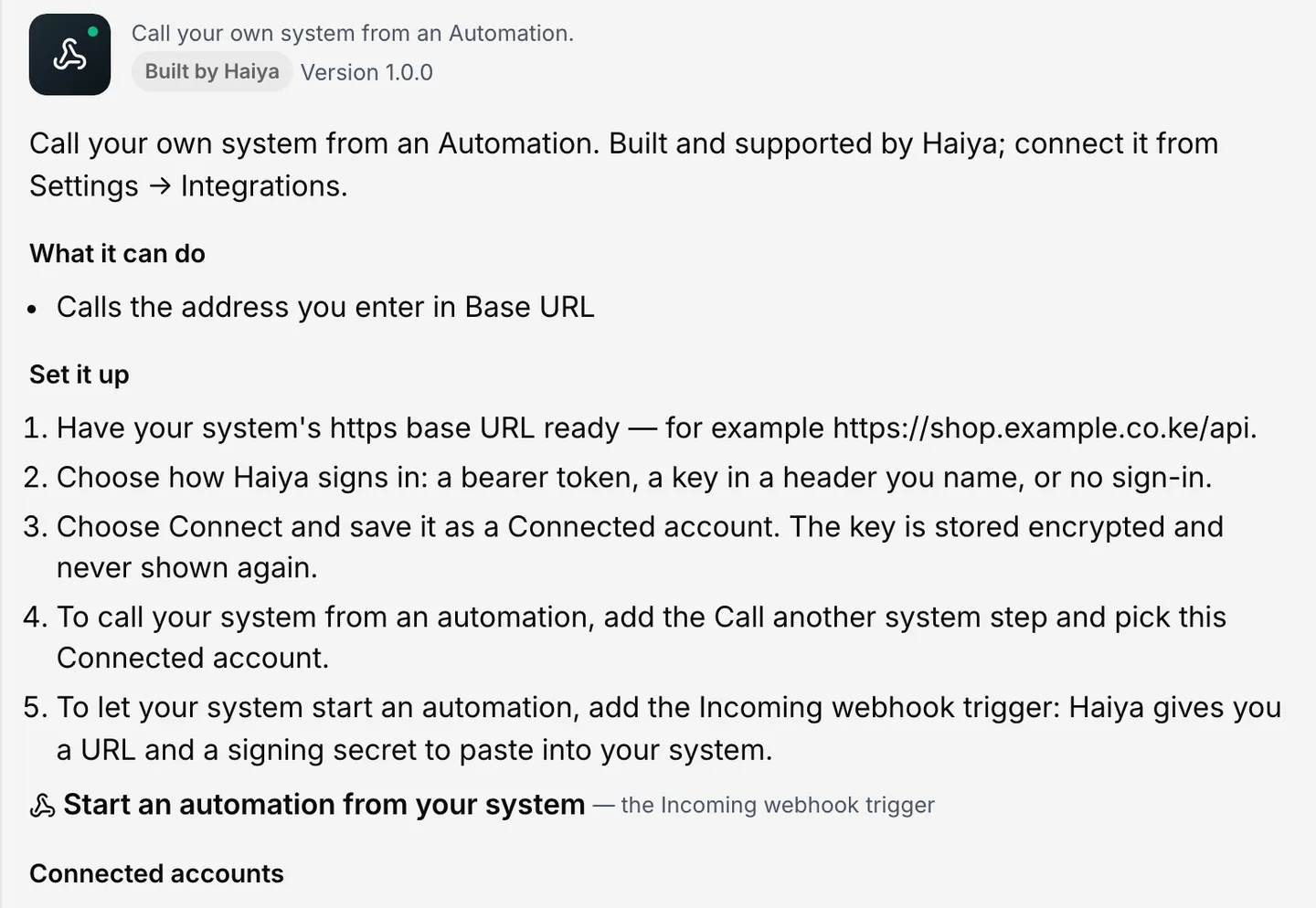
    Custom HTTP integration page with the set-up steps for calling your own system from an automation
    Settings, Integrations, Custom HTTP: choose how Haiya signs in to your system.
  3. Call it from an automation

    Add the Call another system step, pick the account, then choose the method, the path and the values to send. Name the parts of the reply you want to keep.

    In Haiya
  4. Test the call

    Run the step's test. Haiya makes the call and shows the status and the start of the reply, so you can map the fields.

    In Haiya
  5. Let your system start an automation

    Add the Incoming webhook trigger. Haiya shows its URL once: paste it into your system, add a signing secret if your system signs its calls, and say where the customer's phone number is in the body.

    In Haiya and the other tool

How the data moves

  1. Your system
  2. Haiya automation
  3. Your customer on WhatsApp
  • Haiya automation to Your system: Call another system (https)

Technical details.

Call another system

  • GET
  • POST
  • PUT
  • PATCH
  • DELETE

How Haiya signs in to your system

  • Authorization: Bearer <token>
  • <a header you name>: <key>
  • no sign-in

Request body modes

  • fields
  • json
  • form
  • a form's answers

Incoming webhook

  • POST /hooks/automations/<token>
  • signing: a secret in the URL, or an HMAC signature (hex or base64)
  • mapping: phone (required), name, extra values

What the Custom HTTP connection does not do.

  • Haiya signs in to your system with a bearer token, a key in a header you name, or nothing. There is no OAuth sign-in for your own system.
  • Every call is https, to the account's base URL or to a public address. Private and internal addresses are refused, and redirects are not followed.
  • A call has 10 seconds from start to finish, and Haiya reads at most 1 MB of the reply.
  • If your system times out after the request was sent, Haiya does not try again by itself: the run waits for a teammate to check your system and say what happened.
  • An incoming-webhook URL needs the customer's phone number in what your system sends. Without one, nothing starts.
  • It is not a ready-made connector for a named product: you need to know your system's API.

Questions about Custom HTTP and WhatsApp.

What is the Custom HTTP connection?

A connected account that holds your system's https address and key. The Call another system step uses it to call your API from an automation and keep parts of the reply for later steps.

Can my system start an automation in Haiya?

Yes. Add the Incoming webhook trigger to an automation. Haiya gives you a URL, shown once, and your system posts to it with the customer's phone number. Haiya checks the call and starts the automation.

How does Haiya sign in to my system?

With a bearer token, a key in a header you name, or no sign-in. The key is stored encrypted and is never shown again after you save it.

What happens if my system is slow or down?

Each call has 10 seconds. If Haiya could not reach your system at all, or it answers with an error, the step takes its failed path. If the request was sent and no answer came in time, Haiya does not send it again: the run waits for a teammate to check your system, so nothing is done twice.

Do I need to write code?

Not in Haiya: the account, the step and the incoming webhook are set up on screens in the web dashboard. You do need to know your system's address, paths and fields, and your system must make or accept https calls.

Connect Custom HTTP to WhatsApp with Haiya.

Start in the app, or book a demo and we will walk you through the set-up.

“…we use Haiya every day, and it has made team communication much easier.”

James Mwangi, Zinen TechnologiesTrustpilot
  • Get it on Google Play