Skip to content
  • Via API and webhooks

WhatsApp for your WordPress site, without a Haiya plugin.

Haiya has no WordPress plugin. A WordPress site works with Haiya in three ways: through WooCommerce, through a Haiya capture form that turns a visitor into a lead in your CRM, or through webhooks to and from your own code.

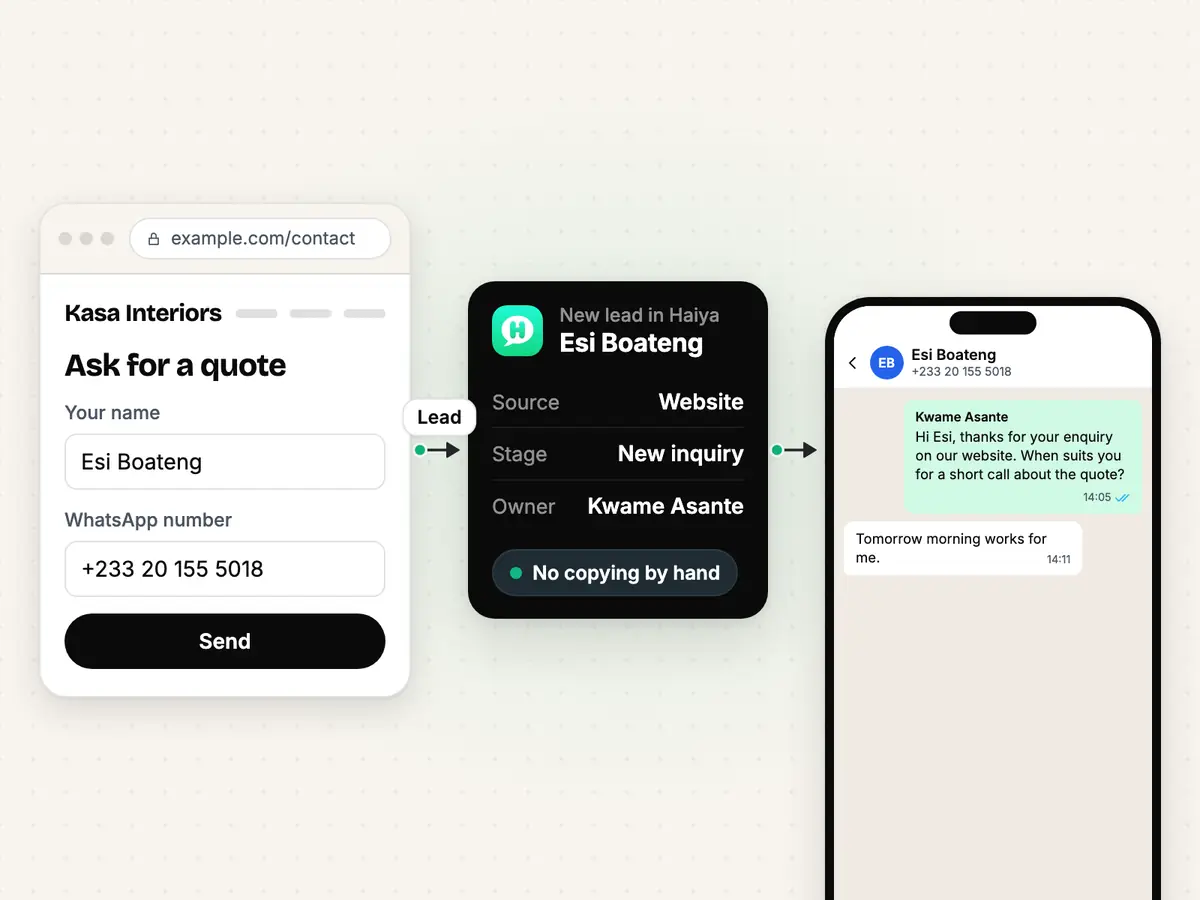
A website enquiry form becoming a new lead in the Haiya CRM, and a teammate's WhatsApp follow-up in the chat

What you can do with WordPress and WhatsApp.

Leads from your website

Turn a website visitor into a lead in your CRM.

Esi Boateng fills in the enquiry form on your WordPress site. The Haiya capture form sends her details straight to your CRM, and a teammate follows up on WhatsApp at +233201555018.

  • A link or a piece of code from Haiya, placed on your page
  • The lead lands in your pipeline, with nothing to copy by hand
About the WhatsApp CRM

Online shop

Order lookup and cart reminders, through WooCommerce.

If your WordPress site runs WooCommerce, an automation can look an order up from the chat, and abandoned carts can get a WhatsApp reminder.

  • The lookup only reads your shop
See the WooCommerce page

Chat button

A WhatsApp button on every page.

A button with a wa.me link opens a WhatsApp chat with your business number. The visitor's message arrives in Haiya's team inbox like any other.

  • The button only opens a chat; it sends nothing by itself
Make a chat button

Your own code

Webhooks in both directions.

Your site's code can start a Haiya automation by calling an incoming-webhook URL with the customer's phone number, and Haiya can post signed business events to your site.

  • Eight business events, signed with X-Haiya-Signature-256
Read the API and webhook docs

What you need

  • Admin access to your WordPress site.
  • A WhatsApp number connected in Haiya.
  • For leads: a capture key, made in Haiya's CRM settings under Website & API capture.
  • For a shop: WooCommerce, set up as on the WooCommerce page.
  • The Haiya web dashboard: forms, automations and webhooks are set up on the web.

How to connect WordPress to WhatsApp with Haiya.

  1. Make a capture form

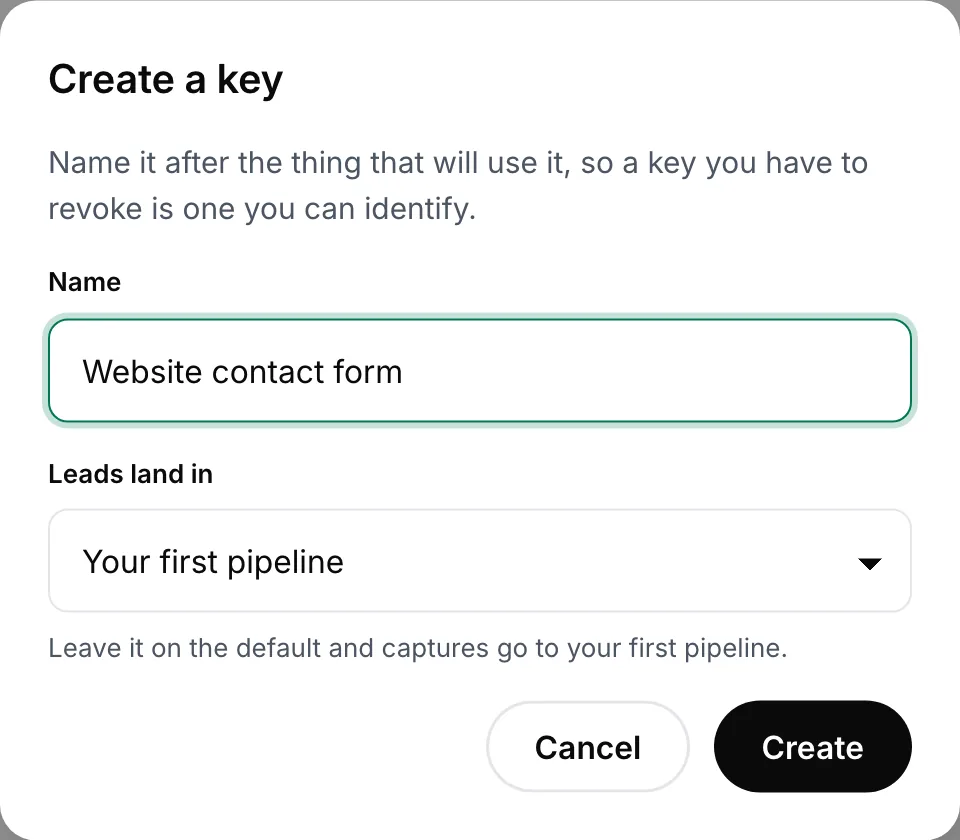
    On the Haiya web dashboard, open CRM settings, then Website & API capture, and press Create a key.

    In Haiya
    Create a key dialog naming a capture key for a website contact form and the pipeline its leads land in
    In CRM settings, create a capture key for your website's form.
  2. Put its link or code on your site

    In the WordPress editor, add the form's link to a button or a menu, or paste the form's code into a page.

    In the other tool
  3. Send a test lead

    Fill in the form yourself once. The lead appears in your Haiya CRM, ready for a teammate to follow up on WhatsApp.

    In Haiya and the other tool
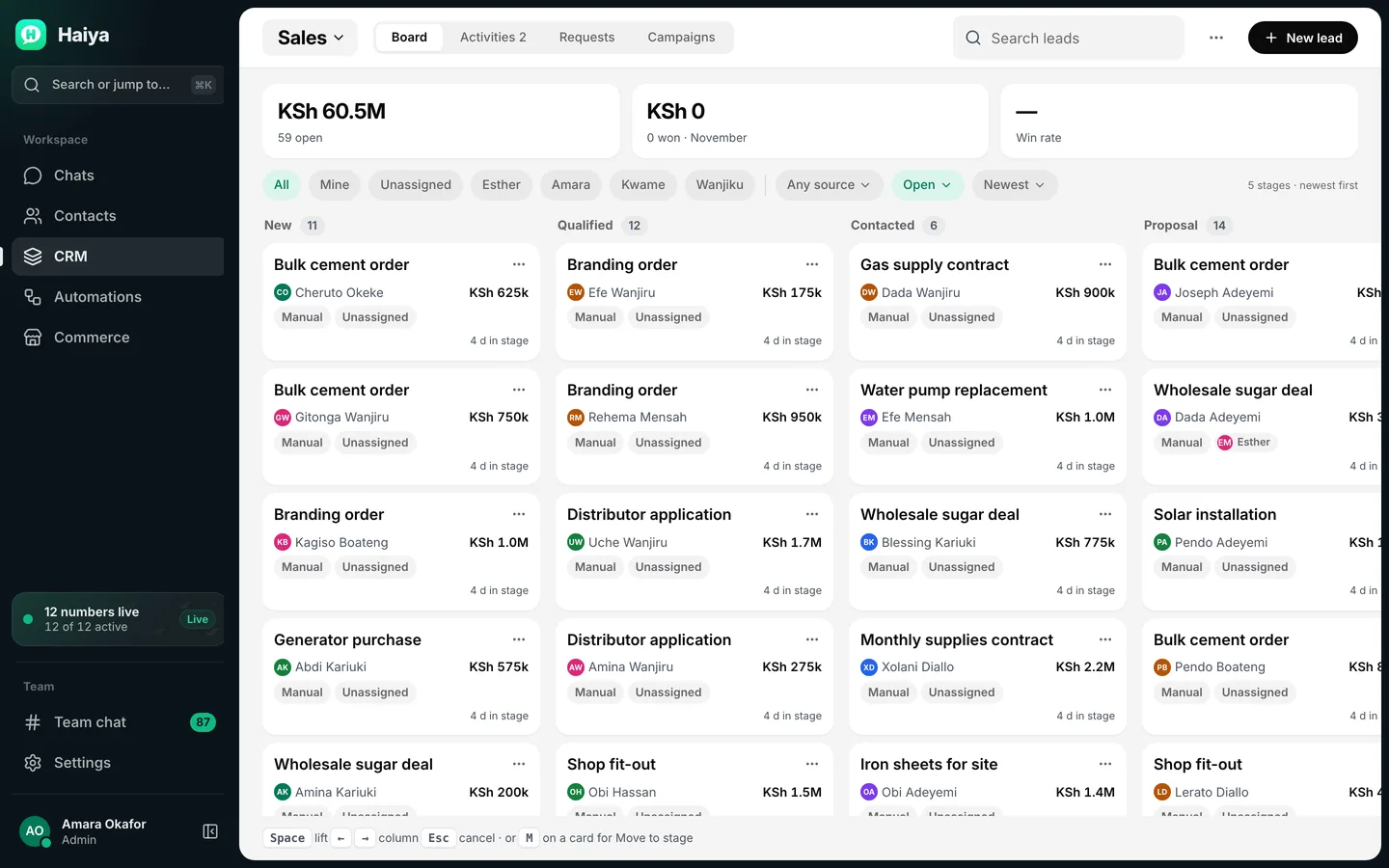
    Sales pipeline board with leads in New, Qualified, Contacted and Proposal columns, each with a value
    The test lead appears on your CRM board.
  4. For a shop, connect WooCommerce

    The order lookup and the abandoned-cart template are set up as the WooCommerce page describes.

    In Haiya and the other tool
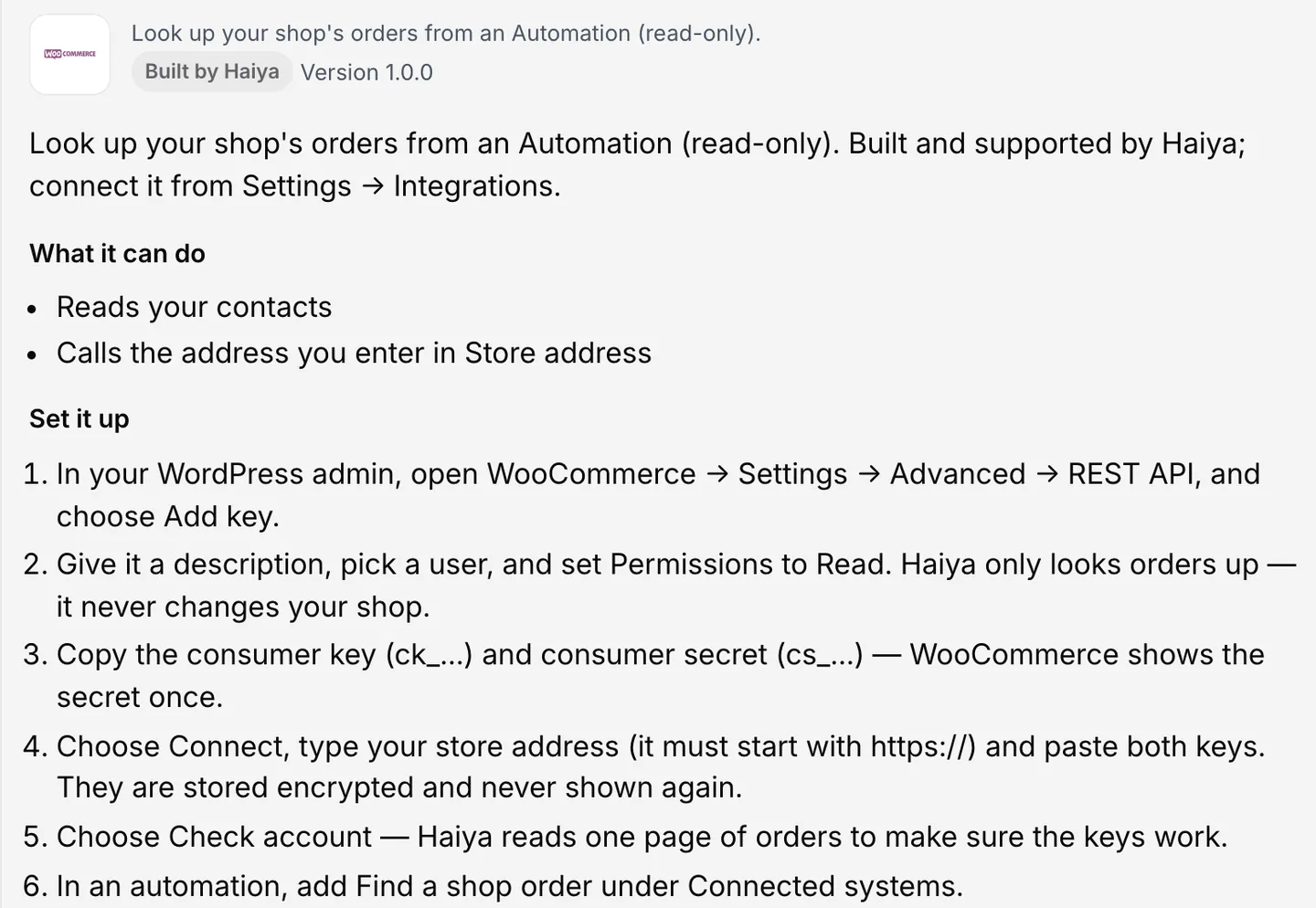
    WooCommerce integration page with the steps to add a read-only REST key and connect your store
    WooCommerce connects from Settings, Integrations.
  5. For anything else, use webhooks

    Code on your site, or a form plugin that can post to a URL, can call a Haiya incoming-webhook URL to start an automation. Haiya can post its business events to an address you add.

    In Haiya and the other tool

How the data moves

  1. Your WordPress site
  2. Haiya
  3. Your team on WhatsApp
  • Haiya to Your WordPress site: Signed business events

Technical details.

Ways a WordPress site reaches Haiya

  • WooCommerce (order lookup, cart and order events)
  • Capture form (link or code)
  • Incoming webhook URL
  • Business events

Endpoints

  • POST /capture/leads
  • POST /hooks/automations/<token>

Business events Haiya can post to your site

  • lead.created
  • lead.stage_changed
  • lead.owner_assigned
  • request.opened
  • request.status_changed
  • payment.received
  • order.placed
  • form.completed

What the WordPress connection does not do.

  • There is no Haiya plugin for WordPress, so nothing is installed from the WordPress plugin directory.
  • Haiya does not read or change your WordPress posts, pages or users.
  • A form made with another WordPress form plugin reaches Haiya only if that plugin can post to a URL, such as an incoming-webhook URL.
  • Only WooCommerce has the built-in order lookup. Other WordPress shop plugins do not.
  • A chat button opens a chat. It does not send anyone a message by itself.

Questions about WordPress and WhatsApp.

Is there a Haiya WordPress plugin?

No. Haiya has no WordPress plugin. Your site works with Haiya through WooCommerce, a Haiya capture form, or webhooks.

How do I add WhatsApp to my WordPress site?

Put a WhatsApp chat button on your pages so visitors can message your number, and add a Haiya capture form so enquiries become leads in your CRM. Both are a link or a piece of code you place with the WordPress editor.

Can leads from my website go into Haiya?

Yes. Make a capture form in Haiya's CRM settings and put its link or code on your site. Each submission becomes a lead in your Haiya CRM.

Does it work with WooCommerce?

Yes. Haiya's WooCommerce connector looks orders up from an automation and only reads your shop. Abandoned-cart and order events come to Haiya by webhook, set up in WordPress.

Can Haiya send a WhatsApp message when something happens on my site?

Yes, if your site can call a URL. Code on the site posts to a Haiya incoming-webhook URL with the customer's phone number, and the automation sends an approved WhatsApp template.

Connect WordPress to WhatsApp with Haiya.

Start in the app, or book a demo and we will walk you through the set-up.

“…we use Haiya every day, and it has made team communication much easier.”

James Mwangi, Zinen TechnologiesTrustpilot
  • Get it on Google Play