


Skip to content
  • Via API and webhooks

Shopify WhatsApp messages for abandoned carts and order updates.

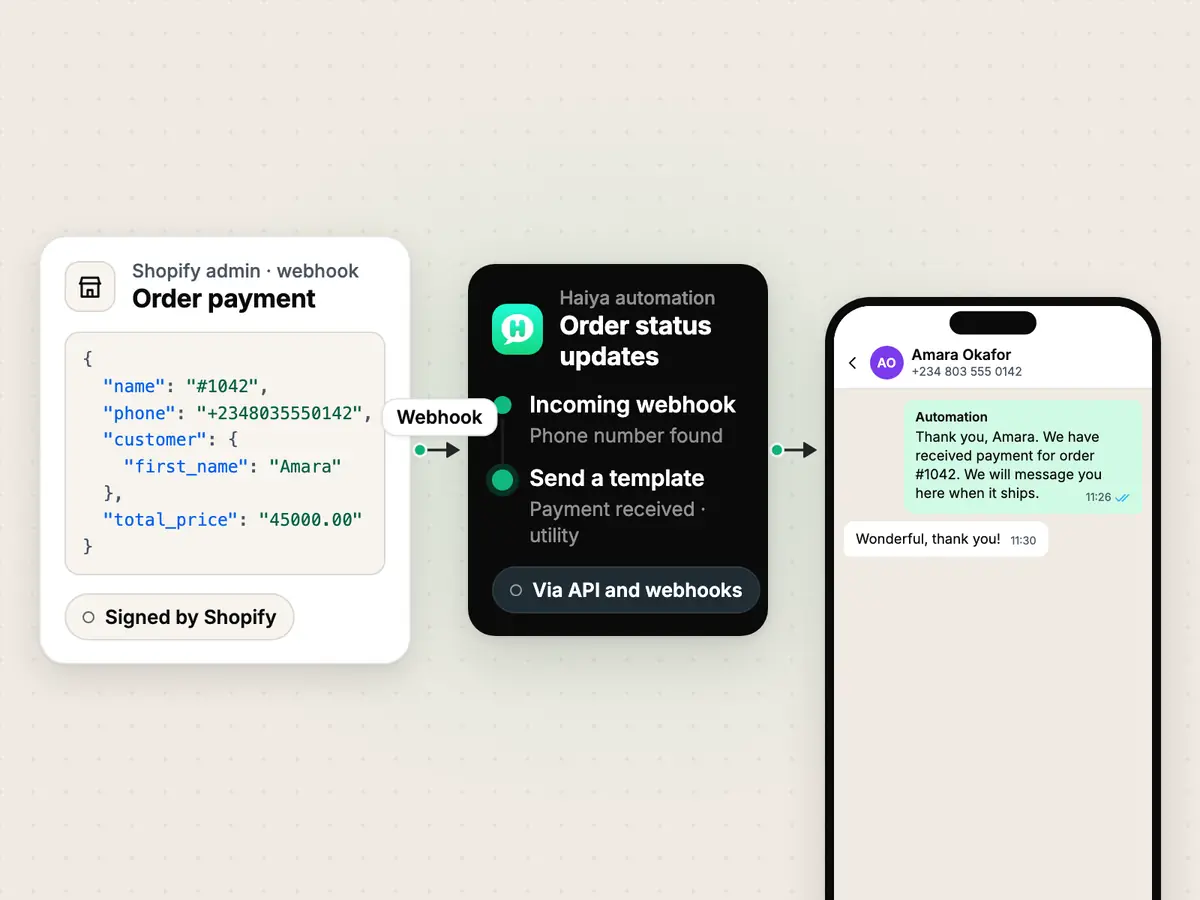
Shopify sends checkout and order events to a Haiya automation through webhooks you create in Shopify admin, and the automation sends your approved WhatsApp template to the customer. There is no Shopify app to install.

  • Ready-made automation: Abandoned cart — Shopify
  • Ready-made automation: Order status updates
A Shopify order payment webhook starting a Haiya automation that sends a payment received template in a WhatsApp chat

What you can do with Shopify and WhatsApp.

Online seller writing an order slip between shipping boxes and a rail of shirts, beside a WhatsApp chat about an order

Abandoned cart

Bring back the customer who left at checkout.

When Amara Okafor (+2348035550142) leaves a Shopify checkout unpaid, Haiya waits 30 minutes and sends your first WhatsApp template, then a second one a day later. As soon as Shopify reports her order, the reminders stop.

  • Ready-made automation: Abandoned cart — Shopify
  • Shopify's Checkout update webhook starts it; its Order creation webhook stops it
  • You choose the approved template for each message
How automations work

Order updates

Say “paid”, “on its way” or “cancelled” before the customer asks.

The Order status updates automation listens for Shopify's Order payment, Order fulfillment and Order cancellation webhooks, and sends the utility template you chose for each one.

  • One webhook and one template per status
  • The customer's first name and the order total can be read from the webhook

Replies

Every reply lands in the team inbox.

When a customer answers a reminder or an update, the conversation opens in Haiya's shared inbox, on the web and in the iPhone and Android apps, where a teammate picks it up.

  • The automation sends; a person answers the questions
See the team inbox

What you need

  • A Shopify store, and access to Settings → Notifications in Shopify admin, where its webhooks live.
  • A WhatsApp number connected in Haiya.
  • An approved WhatsApp template for each message you want to send. You write and submit them in Haiya; Meta reviews them.
  • The Haiya web dashboard: automations are set up on the web, and the apps show you what they did.
  • Your customers' phone numbers in the checkout: Haiya finds the customer by the phone number in each webhook.

How to connect Shopify to WhatsApp with Haiya.

  1. Start from a ready-made automation

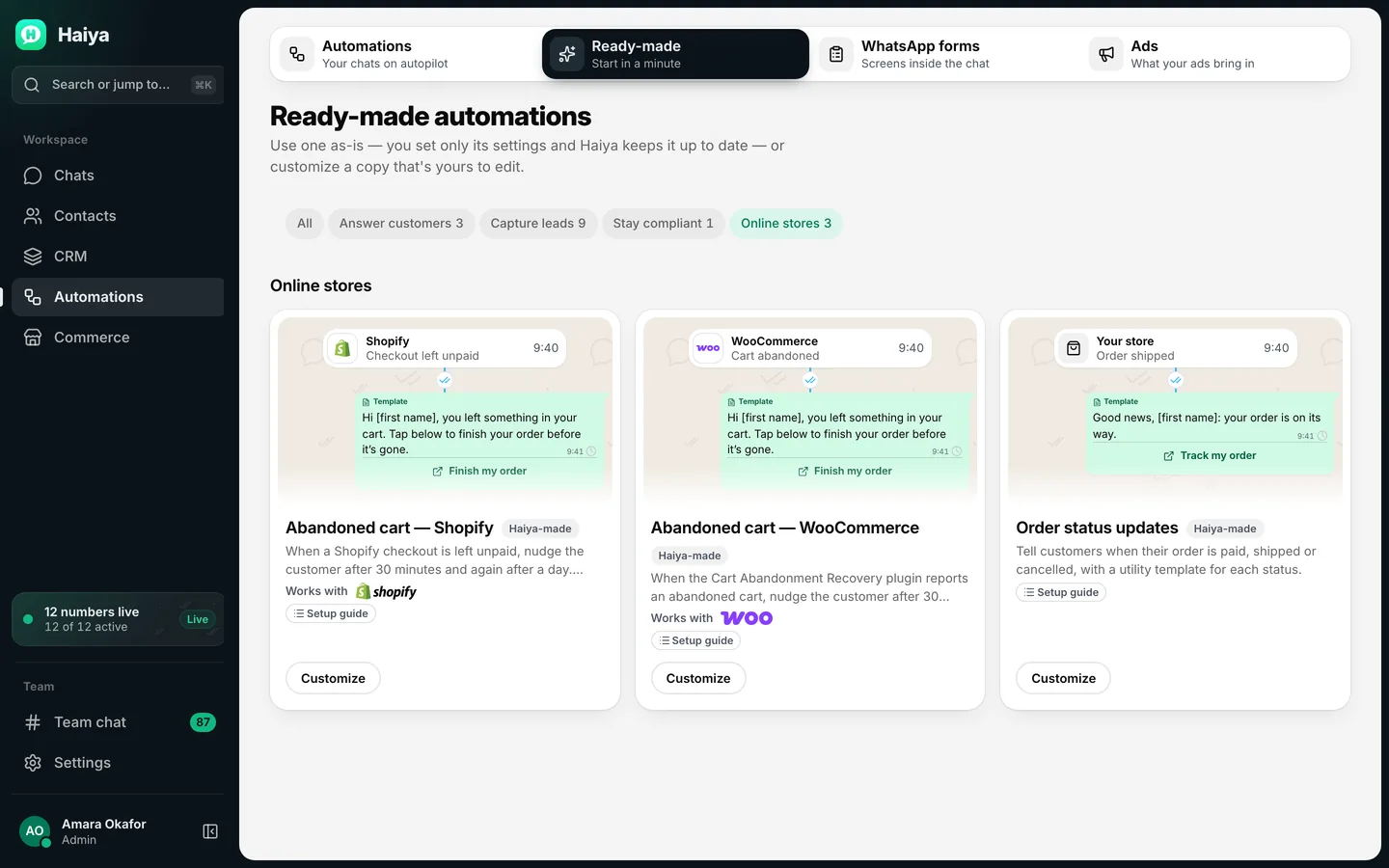
    On the Haiya web dashboard, open Automations and pick “Abandoned cart — Shopify” or “Order status updates” from the gallery.

    In Haiya
    Ready-made automations for online stores: abandoned cart for Shopify and WooCommerce, and order status updates
    Start from the ready-made Shopify automation in the gallery.
  2. Create the webhook URL and copy it

    Choose Create a URL. Haiya shows the URL only once, so copy it straight away. Each Shopify event gets its own URL.

    In Haiya
  3. Create the webhook in Shopify

    In Shopify admin, open Settings → Notifications, scroll to Webhooks and choose Create webhook. Pick the event (for example Checkout update), set the format to JSON and paste the Haiya URL.

    In the other tool
  4. Copy the signing secret into Haiya

    Shopify shows a signing secret under Webhooks. Paste it into “Signing secret” in Haiya and save. Haiya checks every call against it.

    In Haiya and the other tool
  5. Send a test

    In Shopify, choose Send test notification. Haiya ticks the step when the test arrives.

    In the other tool
  6. Pick your templates and publish

    Choose the approved WhatsApp template for each message, then publish the automation. From then on it runs by itself.

    In Haiya

How the data moves

  1. Your Shopify store
  2. Haiya automation
  3. Your customer on WhatsApp
  • Your customer on WhatsApp to Haiya automation: A reply, into the team inbox

Technical details.

Shopify webhooks the ready-made automations use

  • Checkout update
  • Order creation
  • Order payment
  • Order fulfillment
  • Order cancellation

How Haiya checks each call

  • X-Shopify-Hmac-Sha256 (HMAC-SHA256, base64)
  • X-Shopify-Webhook-Id (a repeated delivery is dropped)

Fields read from Shopify's JSON (preset, editable)

  • /phone
  • /customer/first_name
  • /line_items
  • /total_price
  • /currency
  • /buyer_accepts_marketing
  • /token
  • /checkout_token

Message templates you could start from.

Example wording only, with sample names. Meta reviews every template before it can be sent.

  • First nudgeMarketing template

    Hi Amara, you left the linen throw in your basket at Kasa Home. It is still saved for you. Reply here if you have a question before you order.

  • Second nudgeMarketing template

    Hi Amara, your basket at Kasa Home is still waiting. Reply here and one of us will answer in this chat.

  • Payment receivedUtility template

    Thank you, Amara. We have received payment for order #1042. We will message you here when it ships.

  • On its wayUtility template

    Good news, Amara. Order #1042 is on its way. Reply here if you need to change the delivery address.

  • Order cancelledUtility template

    Hi Amara, order #1042 has been cancelled. If this was a mistake, reply here and we will help.

What the Shopify connection does not do.

  • There is no Shopify app, so nothing is installed from the Shopify App Store. The connection is a webhook you create yourself in Shopify admin.
  • Haiya cannot look up a Shopify order or product on demand. It knows only what Shopify sends in each webhook.
  • It never writes to Shopify: no order edits, no stock changes, no customer records. Data moves one way, from Shopify to Haiya.
  • It does not copy your Shopify catalogue into Haiya. Your products stay in Shopify.
  • No phone number, no message. Haiya finds the customer by the phone number in the webhook; an event without one starts nothing, and a number without its country code is only matched to contacts you already have.
  • Haiya holds no Shopify login. The only thing you paste into Haiya is the webhook's signing secret.
  • Shopify puts the phone number in different places depending on your checkout settings. Before you rely on a reminder, place one test checkout with a phone number and open the trigger's log in Haiya: it should show the customer matched. If it shows unmatched, change the phone field from /phone to /shipping_address/phone or /billing_address/phone.

Questions about Shopify and WhatsApp.

Is there a Haiya app for Shopify?

No. There is no Shopify app and nothing to install. You create a webhook in Shopify admin, under Settings → Notifications, and paste in a URL that Haiya shows you.

How do I send WhatsApp messages from Shopify?

Start from the Shopify automation in Haiya's gallery, copy its webhook URL into Shopify, copy Shopify's signing secret back into Haiya and choose the approved WhatsApp template for each message. When Shopify reports a checkout or an order, Haiya sends that template to the customer's number.

Can I recover abandoned Shopify carts on WhatsApp?

Yes. The ready-made “Abandoned cart — Shopify” automation sends a first message 30 minutes after a checkout is left unpaid and a second one a day later. It stops as soon as Shopify reports that the order was placed.

Do the messages need Meta's approval?

Yes. A business can only start a WhatsApp conversation with a message template that Meta has approved. You write and submit templates inside Haiya, and only approved ones can be chosen in the automation.

Does Haiya copy my Shopify products or orders?

No. Haiya uses the details Shopify includes in each webhook for that message. It does not copy your catalogue, look orders up on request or change anything in your store.

Connect Shopify to WhatsApp with Haiya.

Start in the app, or book a demo and we will walk you through the set-up.

“…we use Haiya every day, and it has made team communication much easier.”

James Mwangi, Zinen TechnologiesTrustpilot
  • Get it on Google Play