
WhatsApp chat button for your website
Design a WhatsApp widget for your site: a floating button that opens a chat with your number. Haiya's generator gives you one short snippet to paste.
- Free
- No sign-up
- Made in your browser
What is a WhatsApp chat button?
A WhatsApp chat button is a link that stays in a corner of your website and opens a WhatsApp chat with your number when someone taps it. It is a wa.me link with a button drawn around it, and people also call it a WhatsApp widget.
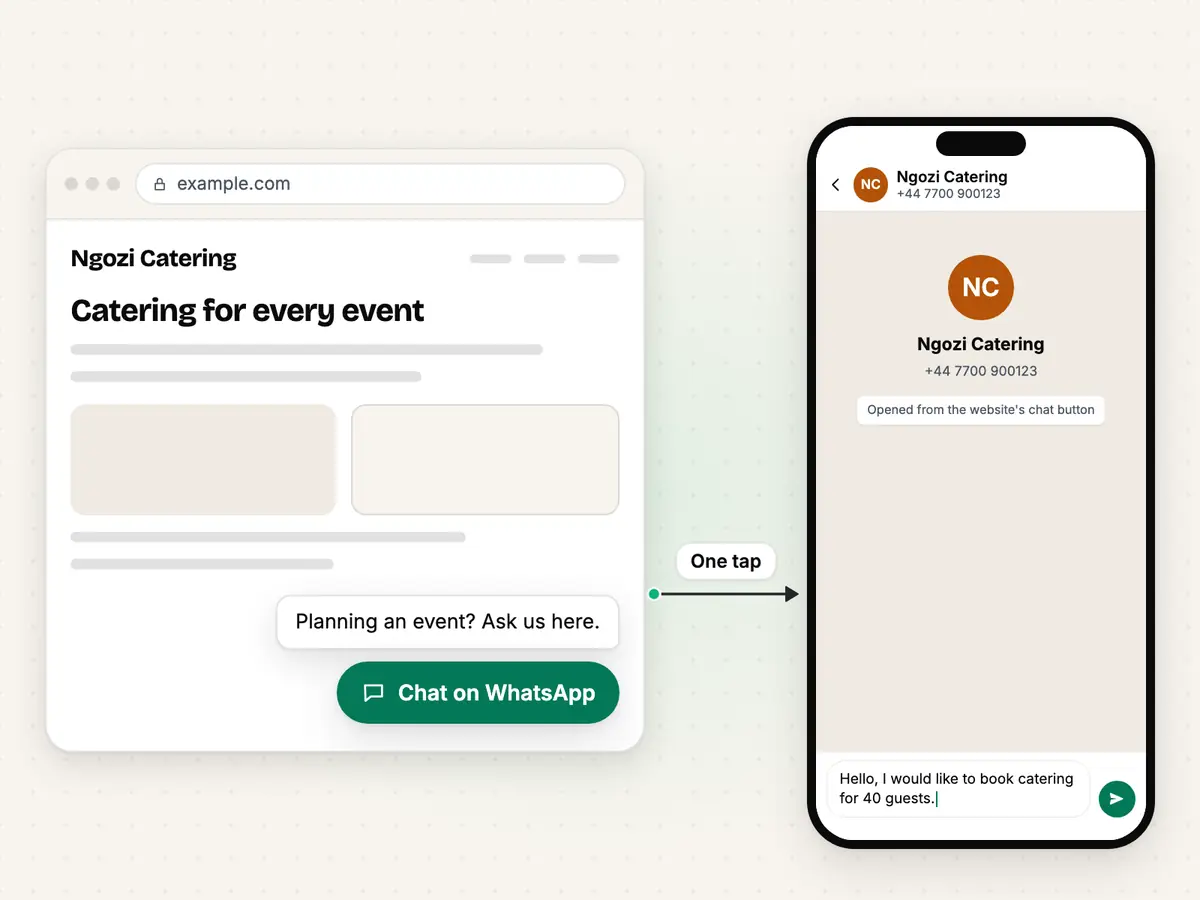
The code this page makes is one link with its styles written inside it, a speech-bubble icon drawn for Haiya and your button text. It loads nothing from another site. A greeting bubble, if you add one, is a short script of a few lines that sits right after the link. The link itself is the same one the WhatsApp link generator makes.
<a href="https://wa.me/447700900123"- The link: WhatsApp's address, then your number in international format, then your message, URL-encoded. It opens in a new tab.
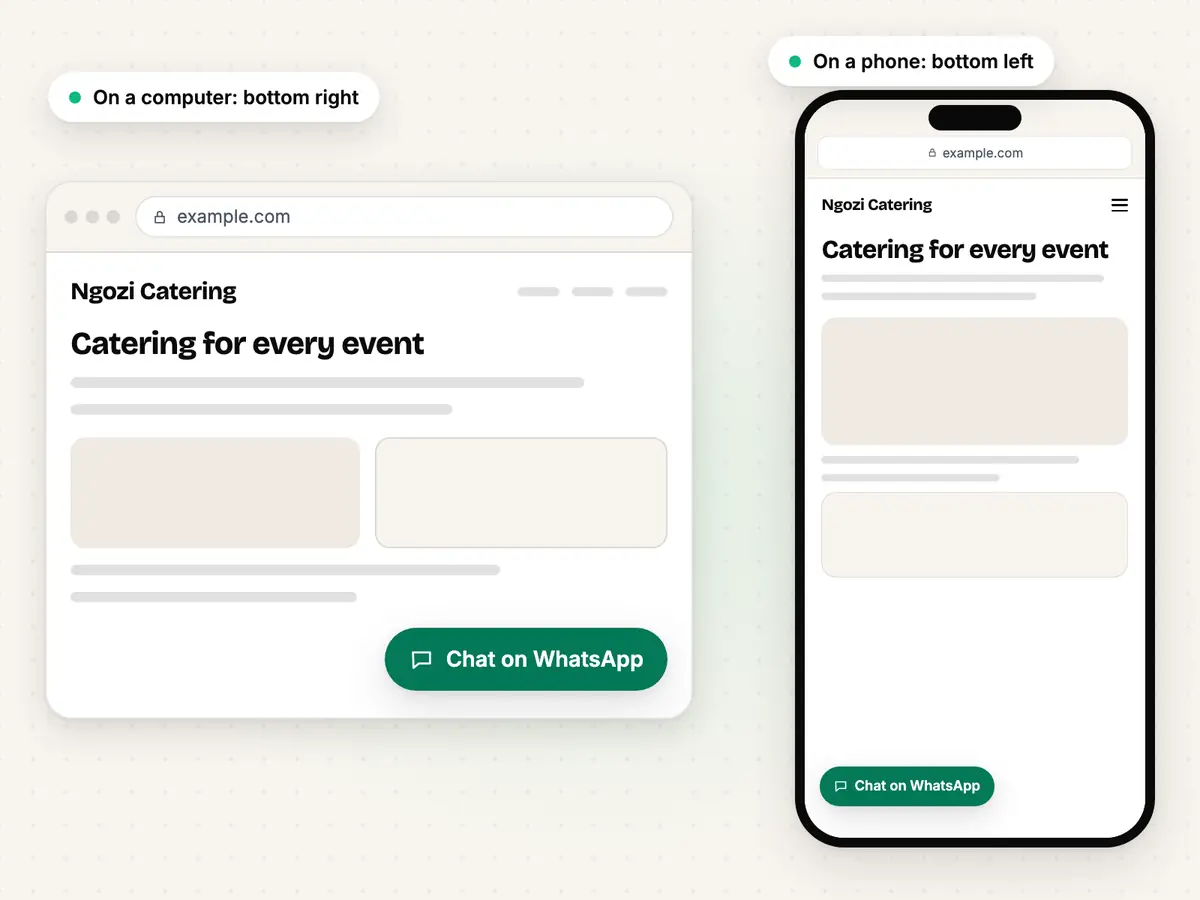
style="position:fixed; bottom:20px; right:20px …">- The styles, written inside the link: the corner, your colour and the text size. Nothing else on your page changes.
<svg>…</svg><span>Chat on WhatsApp</span></a>- A speech-bubble icon drawn for Haiya, not WhatsApp's logo, and your button text.
<script>…</script>- Only when you add a greeting: a few lines that show the bubble after three seconds and hide it when it is closed.
How to add a WhatsApp chat button in three steps.
Type your WhatsApp number
Pick the country code and type the number the way you normally write it. The generator removes spaces, dashes and the leading zero.
Choose the text, colour and corner
Open the options to add a message that is already typed in, change the button text, pick your colour and corner, and add a greeting if you want one. The preview changes as you go.
Copy the code and paste it before </body>
Press Generate, then Copy code. Paste the code just before the closing body tag of your site, or into the custom code box of your website builder, as described below.
A worked example
Ngozi runs a catering business and wants enquiries on WhatsApp. She types her UK number with its country code, writes "Chat with Ngozi" on the button, picks her brand's dark red, which passes the contrast check, and adds a greeting for event planners. The generator writes the code below.
- Typed
+44 7700 900123- Link inside the button
https://wa.me/447700900123?text=Hello%2C%20I%20would%20like%20to%20book%20catering%20for%2040%20guests.
<a href="https://wa.me/447700900123?text=Hello%2C%20I%20would%20like%20to%20book%20catering%20for%2040%20guests." target="_blank" rel="noopener" aria-label="Chat with Ngozi" style="position:fixed;bottom:20px;right:20px;z-index:2147483000;display:inline-flex;align-items:center;gap:8px;max-width:calc(100% - 40px);box-sizing:border-box;padding:12px 18px;border-radius:999px;background:#7a2e1f;color:#ffffff;font:600 16px/1.25 system-ui,sans-serif;text-decoration:none;box-shadow:0 4px 14px rgba(0,0,0,.25)"><svg xmlns="http://www.w3.org/2000/svg" viewBox="0 0 24 24" width="22" height="22" fill="none" stroke="currentColor" stroke-width="2" stroke-linecap="round" stroke-linejoin="round" aria-hidden="true"><path d="M5 4h14a2 2 0 0 1 2 2v9a2 2 0 0 1-2 2h-8l-5 4v-4H5a2 2 0 0 1-2-2V6a2 2 0 0 1 2-2z"/><path d="M8 10.5h.01M12 10.5h.01M16 10.5h.01"/></svg><span>Chat with Ngozi</span></a>
<script>
(function(){
var d=document,a=d.currentScript.previousElementSibling,b=d.createElement("div"),t=d.createElement("span"),x=d.createElement("button");
t.textContent="Planning an event? Ask us on WhatsApp.";x.type="button";x.textContent="\u00d7";x.setAttribute("aria-label","Close");
b.style.cssText="position:fixed;bottom:80px;right:20px;z-index:2147483000;display:flex;align-items:flex-start;gap:8px;max-width:min(280px,calc(100% - 40px));box-sizing:border-box;padding:12px 14px;border-radius:14px;background:#ffffff;color:#111111;font:15px/1.4 system-ui,sans-serif;box-shadow:0 4px 14px rgba(0,0,0,.2)";
x.style.cssText="flex:none;padding:0 4px;border:0;background:none;color:inherit;font:20px/1 system-ui,sans-serif;cursor:pointer";
b.append(t,x);
function c(){b.remove()}
x.addEventListener("click",c);a.addEventListener("click",c);
setTimeout(function(){d.body.appendChild(b)},3000);
})();
</script>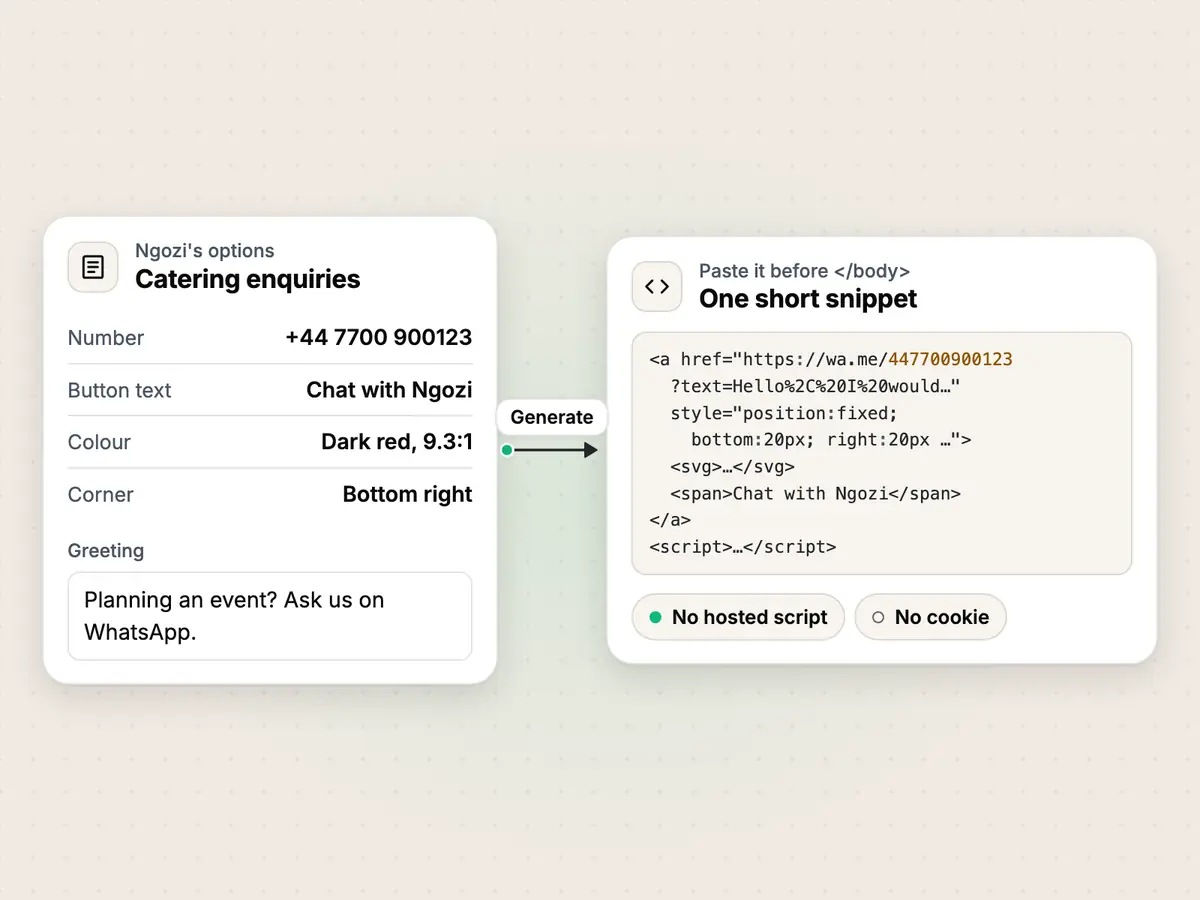
How to add it to your website.
Plain HTML
Paste the code just before the closing </body> tag of every page that should show the button, or of the shared footer file your pages include. The body holds what a page shows, so the button never goes in the head.
WordPress
Add a Custom HTML block (type /html in a new paragraph), press Edit HTML and paste the code. For every page, put that block in your footer template part in the Site Editor. WordPress removes scripts for users without the unfiltered_html capability, so without it the greeting will not show; the button still works.
WhatsApp and WordPressShopify
Duplicate your theme first, as Shopify advises. Then in Online Store, open the theme's menu and choose Edit code, open theme.liquid in the layout folder and paste the code just before </body>. Every page that uses that layout shows the button.
WhatsApp and ShopifyWix
Your site must be published and have a connected domain. In the site dashboard, open Settings, then Custom Code under Development & integrations, and press Add Custom Code. Paste the code, choose all pages, place it in Body – end and press Apply.
Four common mistakes, and how to avoid them.
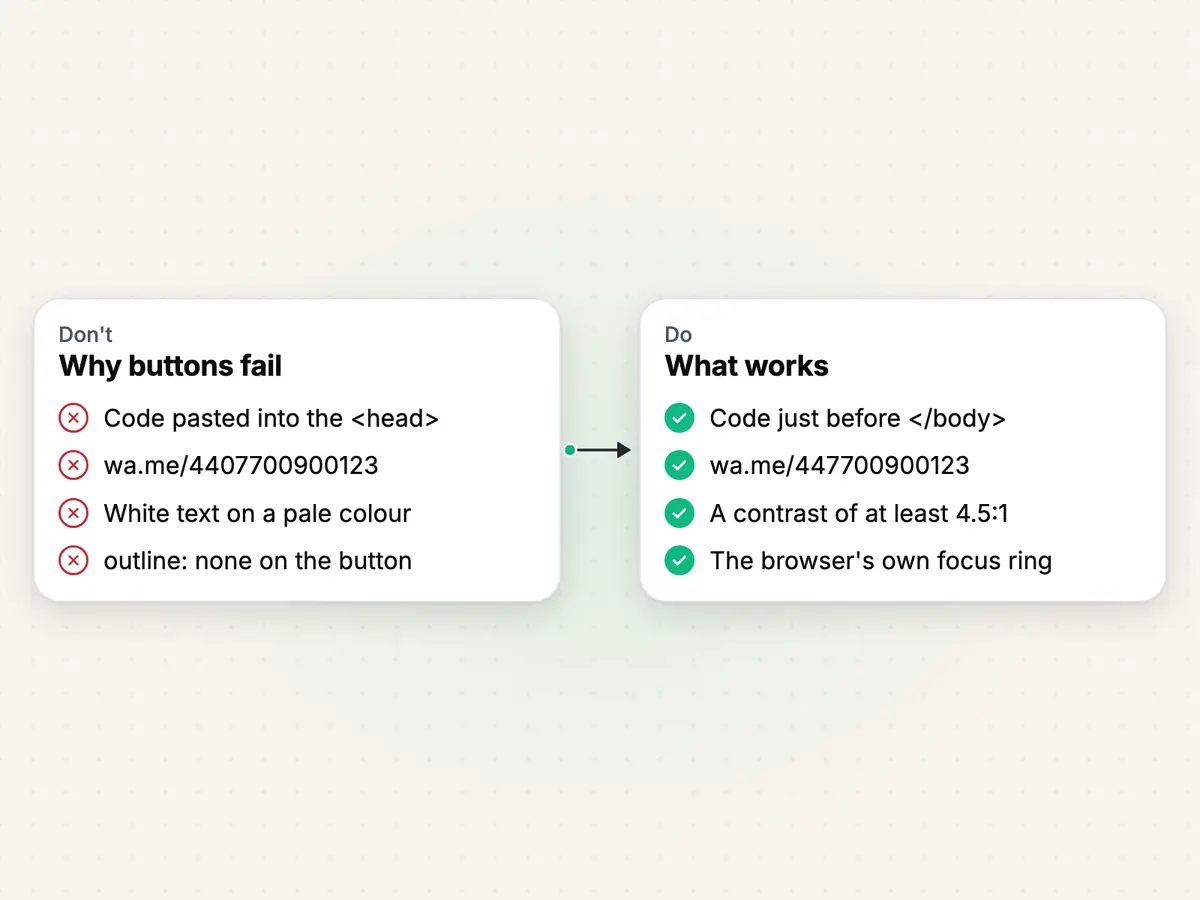
A chat button is only a link, so most buttons that fail do so for one of a few small reasons: the code is in the wrong place, the number is in the wrong format, or the button is hard to read or to reach.
The generator handles the number format and the focus ring for you, and it warns you about a colour that is too pale.
Pasting the code into the head
Wrong
<head> … the button code … </head>Right
… the button code … </body>The head holds information about the page, not what it shows. Put the code in the body, just before it closes.
Keeping the leading zero
Wrong
https://wa.me/4407700900123Right
https://wa.me/447700900123WhatsApp asks for the full number in international format, with any leading zero left out. The country code takes its place.
White text on a pale colour
Wrong
White text on #f4c430 (1.6:1)Right
White text on #7a2e1f (9.3:1)Text this size needs a contrast of at least 4.5:1 to be easy to read. The generator warns you when your colour is below it.
Removing the focus outline
Wrong
outline: noneRight
The browser's own focus ringPeople who use a keyboard see where they are by the focus ring. The generated code never removes it, so leave it in place when you restyle the button.
Limits
Based on WhatsApp Help Center: How to use click to chat.
- The button opens a chat; it sends nothing by itself. It is not a live-chat inbox: there is no chat window on your site, and replies arrive in WhatsApp on your phone, or in Haiya if your number is on Haiya.
- The code loads nothing from Haiya or anyone else, sets no cookie and tracks nobody. The only link to haiya.co is the small credit, and only if you tick it.
- The chat opens only when the number has an active WhatsApp account.
- A single link with inline styles cannot carry a focus style of its own, so the button keeps the browser's own focus ring. The code never removes it.
- Hiding the button on phones or on computers moves it below the edge of the screen there, at 768 pixels wide; it stays in the page, so a keyboard can still reach it.
- The greeting needs a short script. Some editors, and WordPress for users without the right capability, remove scripts; then the greeting does not show and the button still works.
- The limits of 40 characters for the button text, 500 for the message and 120 for the greeting are this tool's own, not WhatsApp rules.
- The icon is a speech bubble drawn for Haiya, not WhatsApp's logo.
When the button brings more chats than one phone can answer, Haiya lets your whole team reply from one number.

About the author
Edward Mwangi
Founder, Haiya
Edward Mwangi is the founder of Haiya and a software developer with more than 15 years of experience building custom applications. He is a co-founder of Quest Website Developers Ltd, the company behind Haiya, which offers web design and custom software solutions to clients around the world. On the Haiya blog he writes about running WhatsApp Business as a team from the phone.
More by Edward MwangiQuestions about WhatsApp chat buttons.
How do I add a WhatsApp chat button to my website?
Type your number at the top of this page, choose the text, colour and corner, press Generate and copy the code. Paste it just before the closing body tag of your pages, or into the custom code box of your website builder. This page gives the steps for plain HTML, WordPress, Shopify and Wix.
Is this WhatsApp widget free, and do I need an account?
It is free, with no sign-up and no email address. The code is made in your browser, so your number and your text are never sent to Haiya, and the code itself loads nothing from Haiya.
What happens when a visitor taps the button?
A new tab opens on wa.me and WhatsApp starts a chat with your number, with your message already typed in if you added one. Nothing is sent until the visitor presses send, and the chat then arrives in WhatsApp like any other.
Do I need the WhatsApp Business API for a chat button?
No. The button is a wa.me link, and WhatsApp's click to chat works for any number with an active WhatsApp account. The API matters when several people need to answer the chats that arrive, which is what a shared inbox such as Haiya is for.
Why does the button not use the WhatsApp logo?
Meta's brand guidelines ask that WhatsApp's logos are used only as Meta provides them and never in a way that implies a partnership, and WhatsApp's help centre asks that its own Chat on WhatsApp button be used as it is. So this tool draws its own speech-bubble icon and leaves WhatsApp's logo alone.
Your link brings the chats. Haiya helps your team answer them.
Run your WhatsApp Business from your phone, as a team, with no markup on Meta's message fees.
“…we use Haiya every day, and it has made team communication much easier.”