Skip to content
  • Via API and webhooks

Connect WhatsApp to Zapier with Haiya's webhooks.

There is no published Zapier app for Haiya. Haiya posts its eight business events to a Zapier Catch Hook URL, and a Zap can start a Haiya automation by calling an incoming-webhook URL.

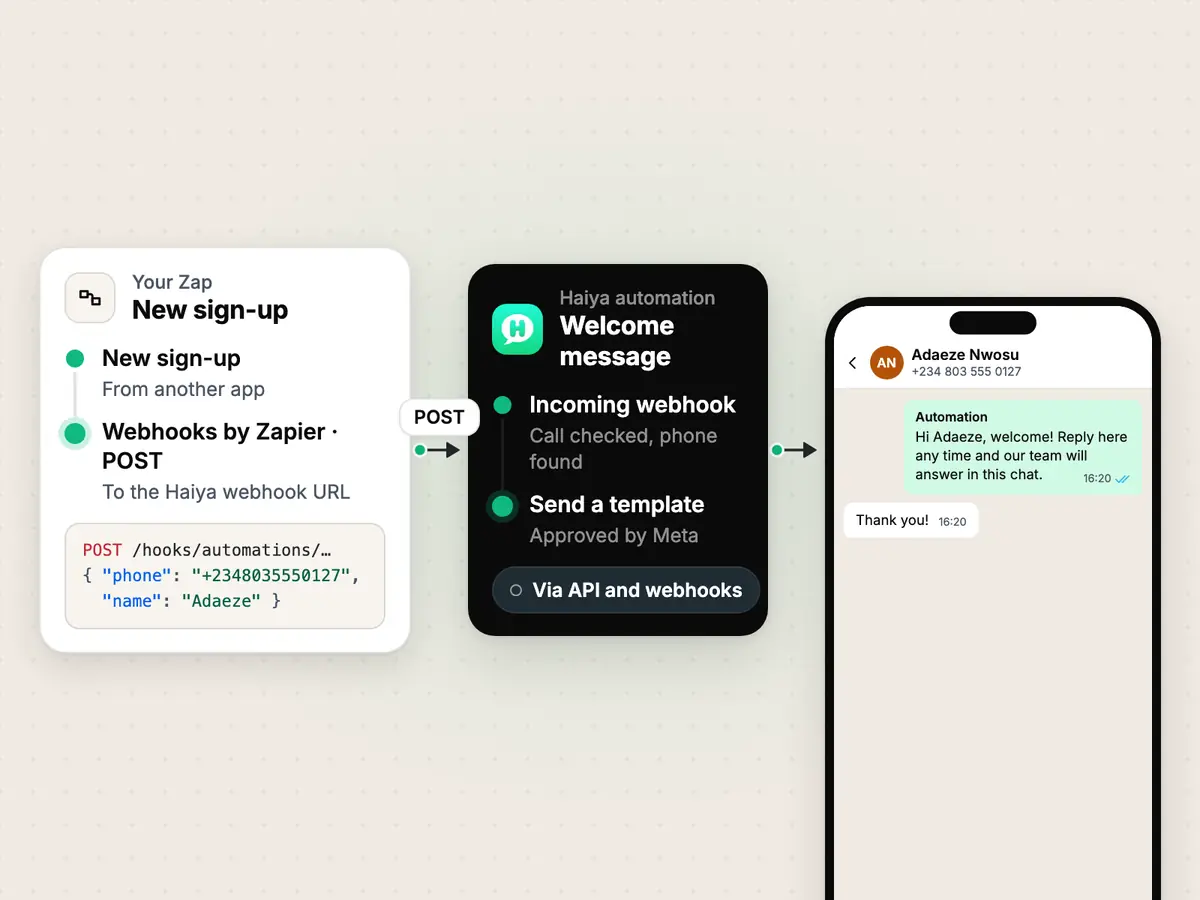
A Zap's POST step calling a Haiya webhook URL, the automation it starts, and the welcome template in a WhatsApp chat

What you can do with Zapier and WhatsApp.

Haiya to Zapier

Start a Zap when something happens in Haiya.

Haiya sends eight business events: lead.created, lead.stage_changed, lead.owner_assigned, request.opened, request.status_changed, payment.received, order.placed and form.completed. You choose them on the web dashboard under Settings → Integrations → Webhooks & events.

  • Each delivery is a signed JSON POST to your Catch Hook URL
  • Pick the events per destination

Zapier to Haiya

Start a WhatsApp automation from a Zap.

When a new sign-up for Adaeze Nwosu (+2348035550127) reaches your Zap from another app, a POST step calls a Haiya incoming-webhook URL with her phone number. Haiya checks the call and starts the automation, which can send her an approved WhatsApp template.

  • The body needs the customer's phone number
  • A repeated delivery is dropped

For developers

Send a message straight through the WhatsApp API.

The Haiya WhatsApp API takes requests shaped like Meta's Cloud API, with a Haiya API key. A Zap's POST step can call it like any other https API.

  • API keys are made by an owner or admin in Haiya
Read the API and webhook docs

What you need

  • A Zapier account whose plan includes Webhooks by Zapier. Check Zapier's pricing page for which plans do.
  • An owner or admin in Haiya: only they can add an event destination.
  • The Haiya web dashboard: event destinations and automations are set up on the web.
  • A WhatsApp number connected in Haiya.

How to connect Zapier to WhatsApp with Haiya.

  1. Start a Zap with a webhook

    In Zapier, start a Zap with Webhooks by Zapier and its Catch Hook trigger, and copy the URL Zapier gives you.

    In the other tool
  2. Add it as an event destination

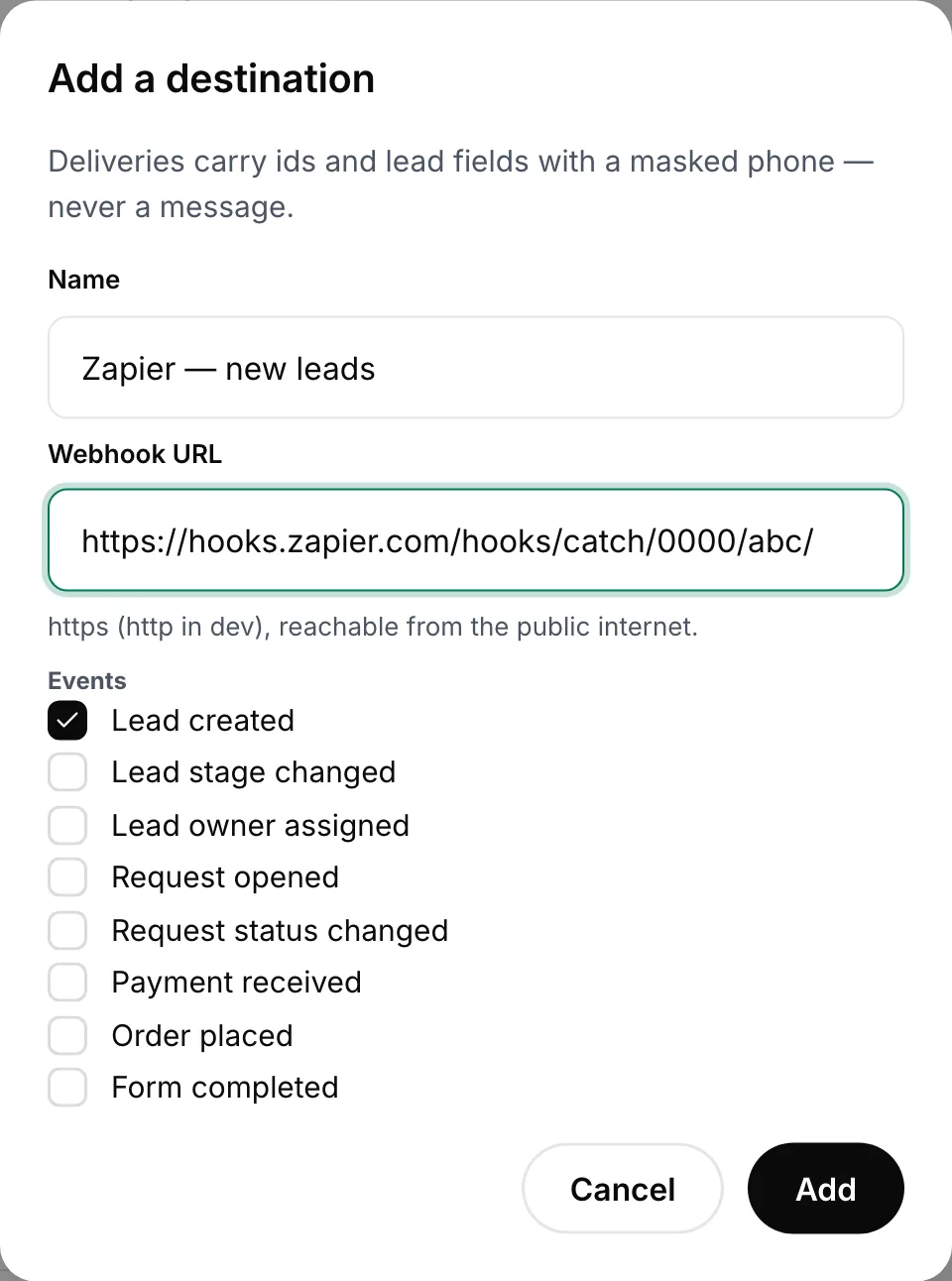
    On the Haiya web dashboard, open Settings → Integrations → Webhooks & events, add a destination, paste the Zapier URL and choose which of the eight business events to send.

    In Haiya
    Add a destination dialog with a name, a Zapier catch hook address and the business events to send
    Paste your Zapier catch hook URL and choose which business events to send.
  3. Keep the signing key

    Haiya shows the destination's signing key once. Keep it in your Zap if you check each delivery's X-Haiya-Signature-256 header.

    In Haiya
  4. Send a test event

    Use the destination's test button in Haiya. Zapier catches the event, so you can map its fields in the next steps of your Zap.

    In Haiya and the other tool
  5. To go the other way, call Haiya

    Add the Incoming webhook trigger to a Haiya automation and copy its URL. In your Zap, a Webhooks by Zapier POST step calls that URL with the customer's phone number.

    In Haiya and the other tool

How the data moves

  1. Haiya
  2. Your Zap
  3. Your other apps
  • Your Zap to Haiya: A POST to an incoming-webhook URL

Technical details.

The eight business events

  • lead.created
  • lead.stage_changed
  • lead.owner_assigned
  • request.opened
  • request.status_changed
  • payment.received
  • order.placed
  • form.completed

Each delivery to Zapier

  • POST, application/json
  • X-Haiya-Signature-256: sha256=<hex>
  • X-Haiya-Event-Type
  • id, event, occurredAt, workspaceId, data

Zapier pieces this guide uses

  • Webhooks by Zapier: Catch Hook (trigger)
  • Webhooks by Zapier: POST (action)

Calls from a Zap into Haiya

  • POST /hooks/automations/<token>
  • POST /whatsapp/<version>/<phone-number-id>/messages

What the Zapier connection does not do.

  • There is no published Zapier app for Haiya: no Haiya triggers or actions to pick inside Zapier. You use Zapier's own webhook steps.
  • Haiya sends these eight business events and no others. A business event never carries a message body.
  • A phone number in a business event is masked to its country code and last four digits, so a Zap cannot message a customer from an event alone.
  • Up to 10 event destinations per workspace. Only owners and admins can add, change or remove one.
  • A delivery that fails is retried for up to 7 days. A destination that has failed without a break for the whole 7 days is switched off.
  • Every delivery is signed with X-Haiya-Signature-256, and a destination's signing key is shown once, when you create it.
  • An incoming-webhook URL needs the customer's phone number. Without one, nothing starts.

Questions about Zapier and WhatsApp.

Is there a Haiya app on Zapier?

No. There is no published Zapier app for Haiya. You connect the two with Zapier's own webhook steps: Catch Hook to receive Haiya's business events, and a POST step to call Haiya.

Which Haiya events can start a Zap?

Eight business events: lead.created, lead.stage_changed, lead.owner_assigned, request.opened, request.status_changed, payment.received, order.placed and form.completed. You choose them per destination under Settings → Integrations → Webhooks & events.

Can a Zap send a WhatsApp message through Haiya?

Yes, in two ways. It can call a Haiya incoming-webhook URL to start an automation that sends an approved template, or it can call the Haiya WhatsApp API with an API key.

Do I need a paid Zapier plan?

Webhooks by Zapier is a Zapier feature, and Zapier decides which of its plans include it. Check Zapier's pricing page before you start.

How do I check that a delivery came from Haiya?

Each delivery carries an X-Haiya-Signature-256 header: an HMAC-SHA256 of the body, made with the destination's signing key. Haiya shows that key once, when you create the destination.

Connect Zapier to WhatsApp with Haiya.

Start in the app, or book a demo and we will walk you through the set-up.

“…we use Haiya every day, and it has made team communication much easier.”

James Mwangi, Zinen TechnologiesTrustpilot
  • Get it on Google Play