To connect a WhatsApp number to Haiya, open Settings, then WhatsApp numbers, press Connect a number, then Continue with Meta. Meta checks the number in its own secure window, Haiya registers it, and customers keep messaging the same number.
Takes
About two minutes
Applies to
iPhone and iPad, Android, the web
Last updated
Before you start
Your phone is nearbyMeta sends a code to it by text or call.
You’re an admin of the business on FacebookMeta asks you to pick the business that owns the number.
Already with another provider? You can keep itYour current provider keeps working.
Your plan has room for another numberOtherwise, upgrade or remove a number first.
You can manage numbers in HaiyaOwners and admins can.
Step by step
The screens below are drawings of the Haiya app with sample data.
1Open WhatsApp numbers and press Connect a number
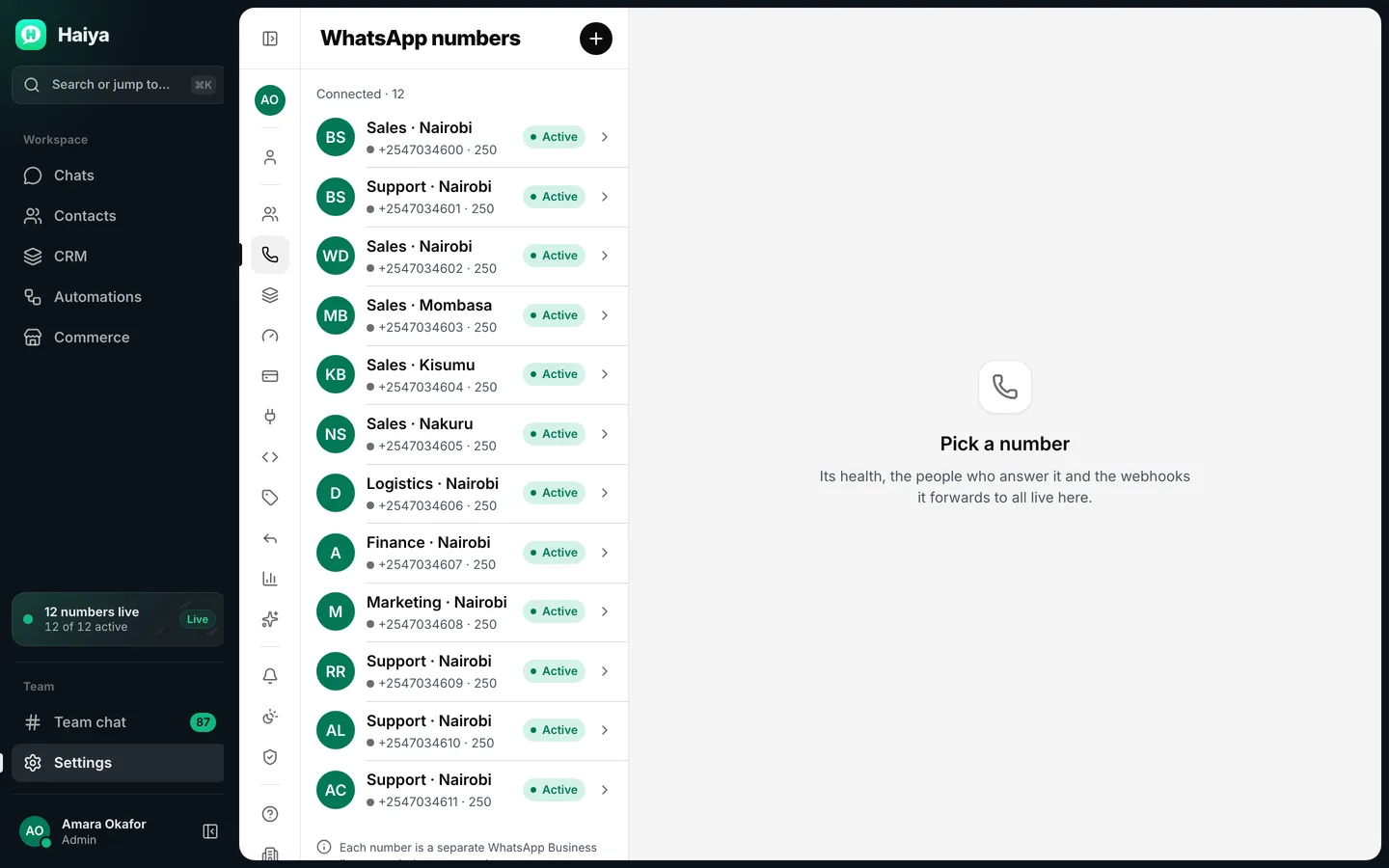
In Haiya, open Settings, then WhatsApp numbers, and press Connect a number, under the list of numbers. On the web and iPhone it is also the round + button at the top. Expected result: the Connect a WhatsApp number screen opens.
On the web, sign in to Haiya in your browser first.
Settings, then WhatsApp numbers, on the web with sample numbers. Once a number is connected, Connect a number is the round + button at the top.
2Press Continue with Meta
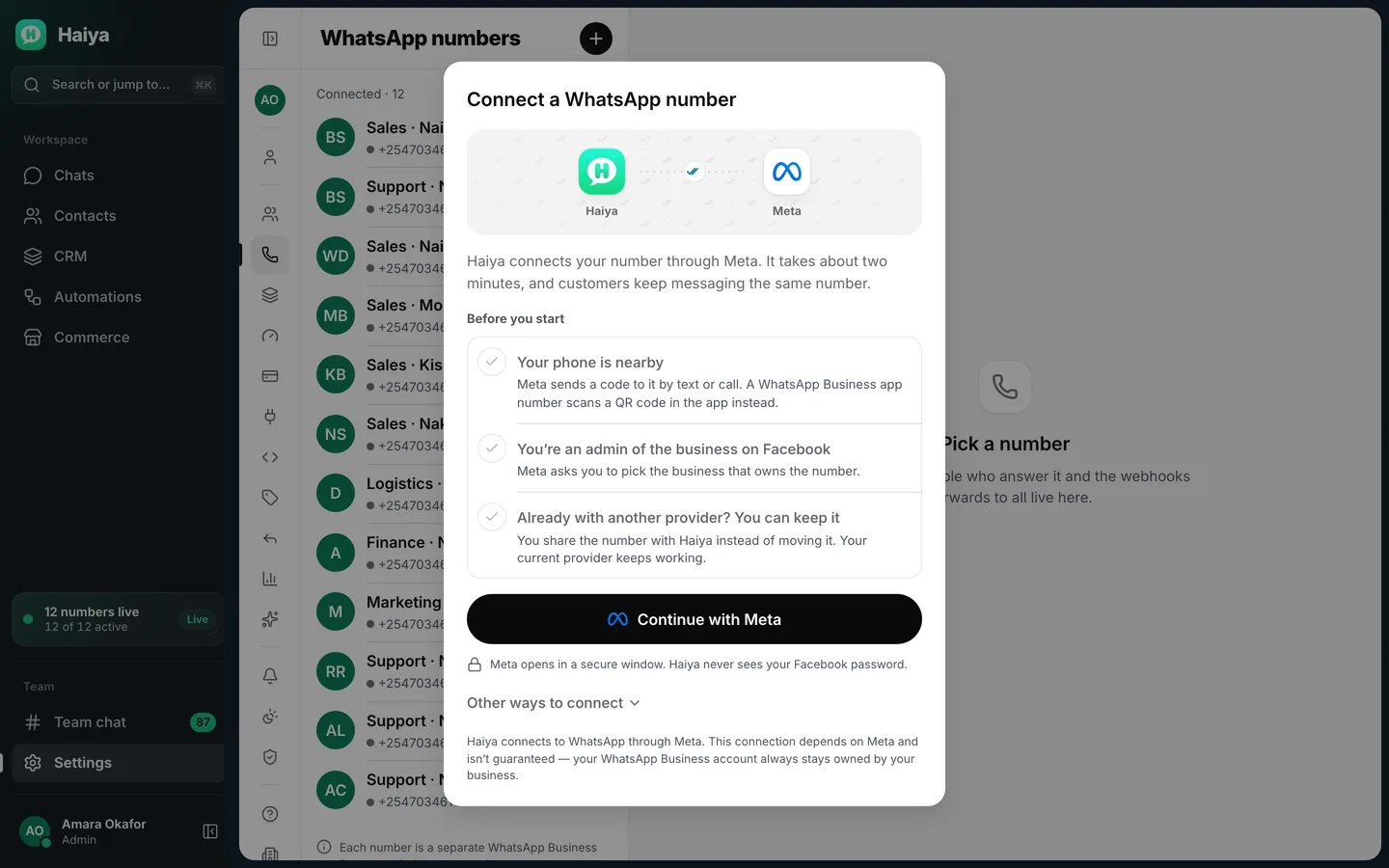
Check the Before you start list and press Continue with Meta. Expected result: Haiya first opens its own page, Connect your WhatsApp number, with a Continue with Facebook button; Meta’s window opens from there.
On the WhatsApp Business app? Press the same button; you scan a QR code in the app instead of getting a code.
Connect a WhatsApp number on the web: the Before you start list and Continue with Meta.
3Finish in Meta’s window
Haiya opens a page called Connect your WhatsApp number. Press Continue with Facebook, and Meta's window opens. Log in with Facebook, add your WhatsApp number, enter the code Meta sends to it, pick the business that owns it, keep every permission ticked and press Finish. Two other set-up jobs also happen at Meta, not in Haiya: adding a payment method, and verifying your business when you want to message more people.
On iPhone and iPad, iOS first asks whether Haiya may use the website to sign in. Tap Continue. On Android, the page opens in a browser tab over Haiya.
On the web, Meta opens in a pop-up. If it is blocked, allow pop-ups for Haiya and start again.
9:41
Finish in Meta’s window
Meta
Checked
Connected
Registered
Live
Meta asks for your phone number first, then sends a code to it. Come back here when Meta says you’re done.
Meta
Meta’s own screens open here
Cancel
Sample screen: Haiya waits with the title Finish in Meta’s window while Meta’s own window is open, with a Cancel button.
4Wait while Haiya sets the number up
Haiya shows Connecting your number and works through four steps. Keep the screen open; the number’s page opens next.
After 12 seconds, Still working and a clock appear. That is normal.
9:41
Connecting your number
Meta
Meta is done. Hang tight while Haiya sets your number up with WhatsApp — it usually takes less than a minute.
Meta finished
Saving your WhatsApp account
Checking the number with WhatsApp
Registering it for messages
Still working — WhatsApp can take a moment. Keep this window open.0:14
Sample screen: Connecting your number. Meta finished and Saving your WhatsApp account are done, Checking the number with WhatsApp is running, Registering it for messages is next.
5Check that the number is live
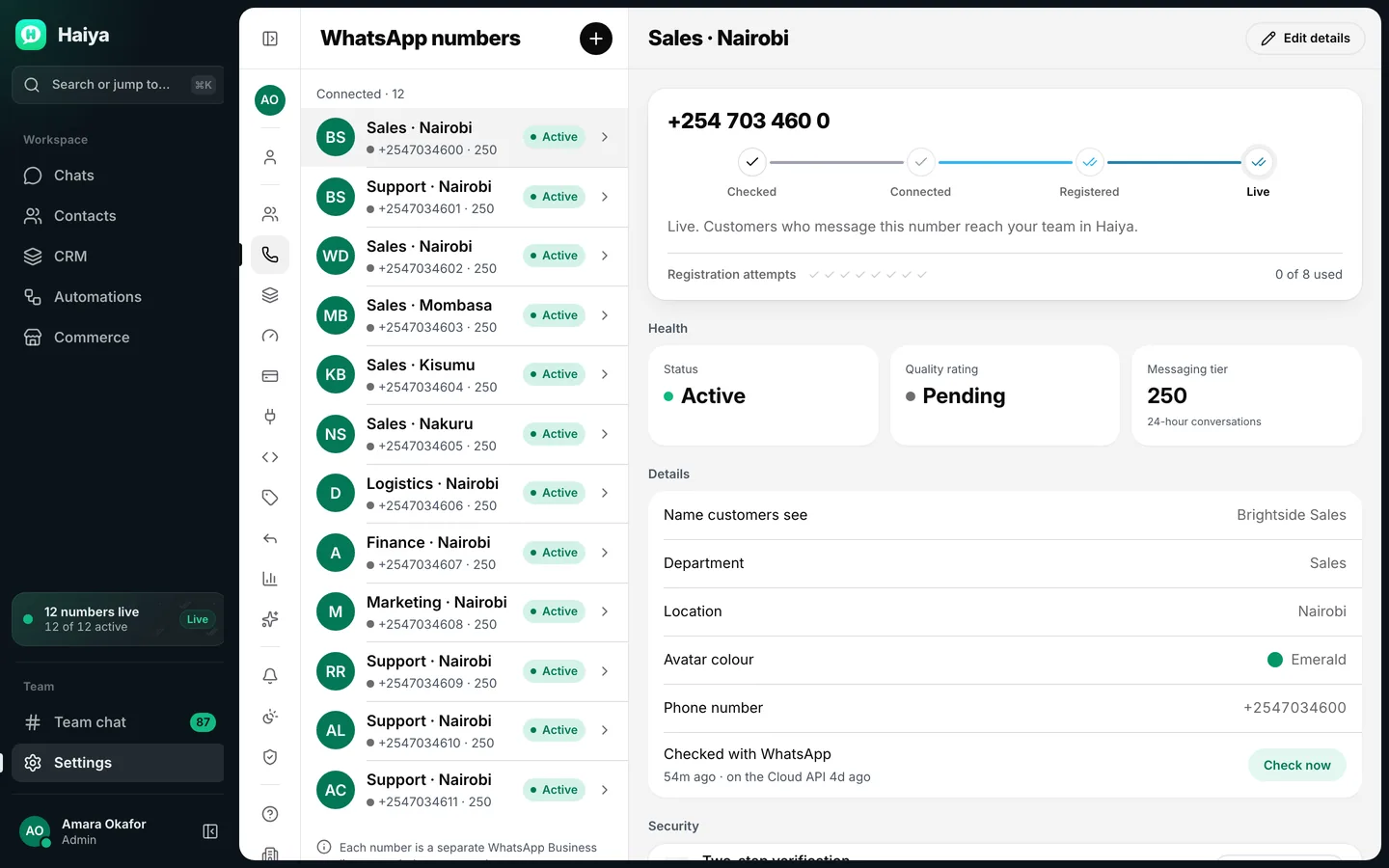
The number’s page ticks Checked, Connected, Registered and Live. Expected result: a message sent to the number from another phone appears in Chats.
Meta checks the name customers see later, when the number reaches a higher messaging limit, not when you connect. When Meta reports a status, the number's page shows Display name review under Details: In review, Approved, Declined, Expired or Not requested. If Meta declines the name, the page shows WhatsApp rejected the display name.
A live number’s page on the web: Checked, Connected, Registered and Live are ticked, with Health and Details below. Sample data.
If something goes wrong
When a step fails, Haiya shows a short message with what to do. Find the message in the first column.
Messages you may see, why they appear and what to do
What you see
Why
What to do
This number is with another provider
Another provider has it.
You don't have to move it. In Meta's window, choose to share your WhatsApp account with Haiya — your current provider keeps working.
Meta's window closed before the last step
The window closed before Finish.
Start again and press Finish on the last screen.
Haiya didn't get all the permissions it needs
A permission was unticked.
In Meta's window, keep every permission ticked and keep your WhatsApp account selected.
WhatsApp needs to verify this number first
Meta wants a code first.
Haiya asks WhatsApp to send it by text message or voice call; you type it in Haiya.
The number has a two-step PIN Haiya doesn't know
Another provider set a PIN.
Verify the number by code, or set your own PIN in Haiya, and Haiya registers it again.
What are the other ways to connect?
Under Other ways to connect are three methods for developers and special cases: a
Meta test number, an access token and a partner share. If you are not sure, use
Continue with Meta. For Meta’s business verification, see
verify your business with Meta.
With your permission we use analytics cookies to see how the site is used, and advertising cookies to measure our ads. Nothing is set until you choose, and you can change your mind at any time from cookie settings at the foot of the page. Privacy policy