
WhatsApp Business API7 min read
How to get the WhatsApp Business API: the steps, and what Meta decides
Getting the WhatsApp Business API takes a Meta business portfolio, a phone number and a provider or software of your own. Some steps are yours; Meta's reviews are not.

By Edward MwangiFounder, Haiya
Key takeaways
- To get the WhatsApp Business API, a business needs a Meta business portfolio, a phone number it owns that can receive a text or a call, and either a provider or software of its own.
- With Haiya, set-up happens inside Haiya through Meta's official embedded sign-up: you pick your business, add and verify the number and enter a display name in Meta's window, and Haiya registers the number for messages.
- Business verification, display name checks, template reviews and messaging limits are Meta's decisions, and Meta's documentation gives no fixed time for them.
- Meta offers a way to keep the WhatsApp Business app on the same number; ask Haiya whether it fits your case before you connect.
How can I get the WhatsApp Business API?
You get the WhatsApp Business API by connecting a phone number to Meta’s WhatsApp Business Platform, either through a provider or through software you build yourself. Either way you need a Meta business portfolio and a number you own. With Haiya, set-up happens inside Haiya through Meta’s official embedded sign-up, and your team starts answering from the app once the number is live.
Meta describes the platform as a way for businesses “to communicate with customers at scale”, and its Cloud API documentation is written for developers (About the WhatsApp Business Platform). If you’d rather not build on it yourself, you use a provider that has done that work, and connect your number through Meta’s embedded sign-up. The WhatsApp Business API is on every Haiya plan.
What you need before you start
You’ll need:
- A business portfolio. Meta says you must have one to use the platform. Meta’s sign-up lets you pick an existing portfolio or create a new one.
- A WhatsApp account and a Messaging account in that portfolio. You pick or create the WhatsApp account during Meta’s sign-up. The WhatsApp account holds your numbers; the Messaging account holds your templates and billing.
- A phone number you own. Meta’s phone number rules say it needs a country and area code and must be able to receive a text message or a voice call. Short codes aren’t supported.
- Admin access to the business on Facebook, so you can choose the business that owns the number when Meta asks.
One rule matters if the number is already on WhatsApp. Meta’s phone number page says a number already in use with WhatsApp can’t be registered unless it’s deleted from WhatsApp first. Meta also offers a separate way to keep the WhatsApp Business app on the same number, covered below.
How to get the WhatsApp Business API, step by step
Owners and admins can connect a number, from the web dashboard or from Haiya’s iPhone and Android apps.
- Choose the number. Use a number your business owns and can receive a code on. If it’s already with another provider, you don’t have to move it: in Meta’s window you share your WhatsApp account with Haiya, and your current provider keeps working; if both stay, Meta’s conversation routing decides which one receives customer messages.
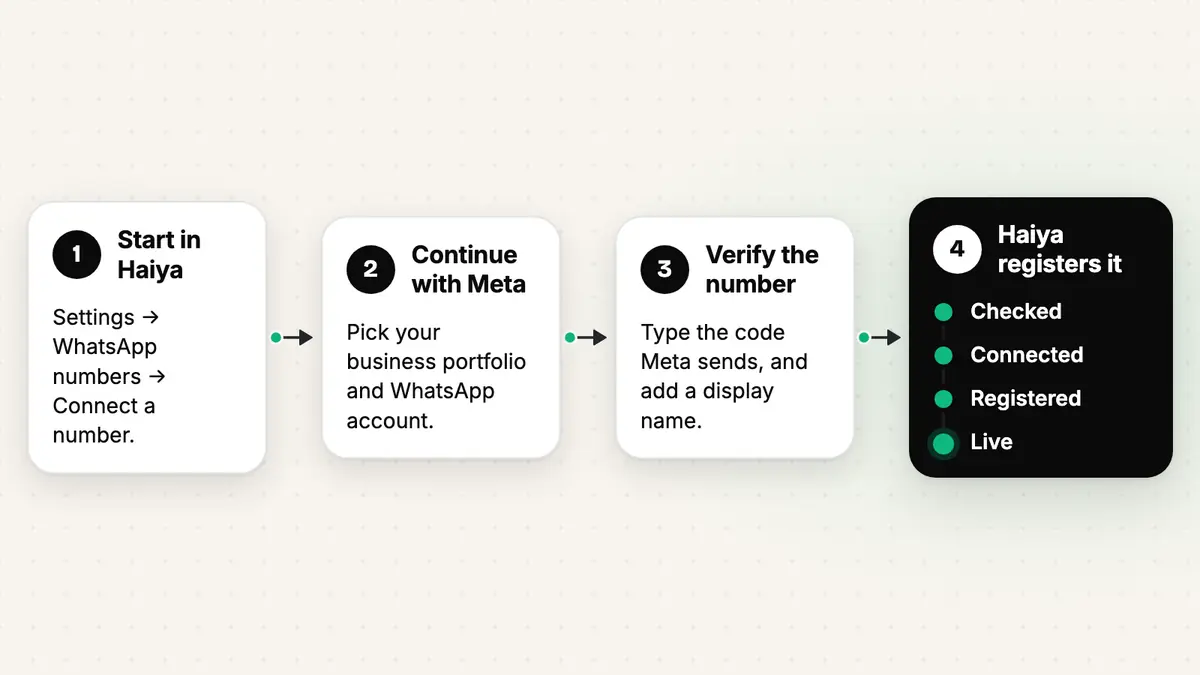
- Start in Haiya. Open Settings, then WhatsApp numbers, and choose Connect a number. Keep the phone nearby.
- Continue with Meta. Meta opens in a secure window. You log in with your Facebook or Meta business details; Haiya never sees your Facebook password.
- Answer Meta’s questions. Meta asks you to pick or create the business portfolio and the WhatsApp account, accept its terms, and give Haiya access to the account.
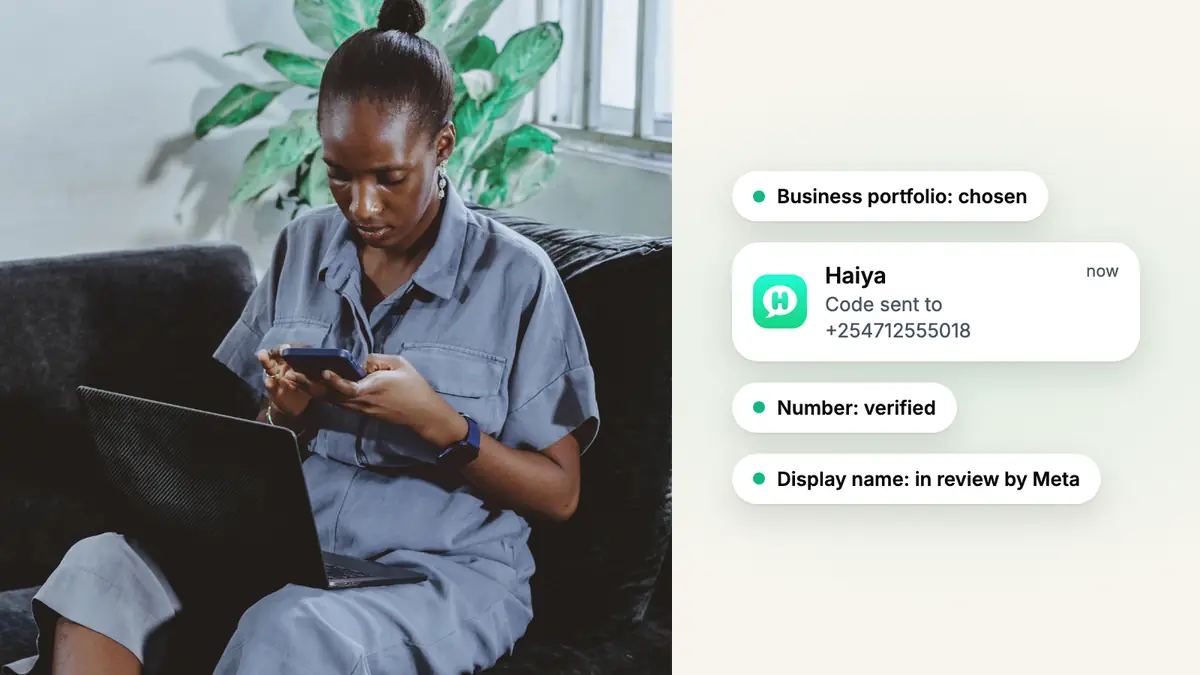
- Add and verify the number, and enter a display name. Meta sends a code to the number by text or call, and you type it in. The display name is the business name customers see on the number’s profile.
- Press Finish on Meta’s last screen. If the window is closed before Finish, nothing is connected and nothing changes on the number; you start again.
- Let Haiya register the number. Back in Haiya, the number moves through four ticks: Checked, Connected, Registered and Live. It can’t send until it’s Live.
Two things come next. Meta bills message charges to a payment method on your business’s account with Meta, so add one in your Meta business settings. Haiya never handles that payment. Then invite your team, each with their own sign-in and role: owner, admin, agent or viewer.
The help article Connect your WhatsApp number walks through each screen.
What Meta decides, and what you control
Some parts of getting the API are Meta’s processes, not your provider’s. Meta gives no fixed time for them.
What Meta decides:
- Business verification. Meta’s business verification is a process that gathers information about your business “so we can verify your identity as a business entity”. Only an admin of the business can complete it. It’s one of Meta’s paths to a higher messaging limit, and it raises the number of registered phone numbers a portfolio can have.
- Display names. Meta checks the display name against its display name guidelines once the number reaches a higher messaging limit, and can reject it; a rejected name can be appealed (Display names). You can change a display name up to 10 times in 30 days.
- Templates. Outside an open customer service window you can send only templates, and Meta checks each template and its category before it can be used (Template categorization).
- Messaging limits. A newly created business portfolio can reach 250 unique customers outside open chats in a moving 24 hours. Meta raises the limit as a business completes one of its scaling paths and keeps message quality high (Messaging limits).
- How many numbers. Meta caps a new portfolio at two registered numbers and raises it to 20 once the business is verified or reaches a messaging limit of 2,000 (Business phone numbers).
What you control: which number you connect, the business details you give Meta, the display name you ask for, the wording and category of each template, and how carefully you message customers. In Haiya you also decide who on your team works on which number, and what each person can do.
Can I keep the WhatsApp Business app on the same number?
Meta offers a way to keep the app on the same number; ask us whether it fits your case. Meta’s guide to onboarding WhatsApp Business app users lets a business connect its existing app account and number to the API, and keep messaging one to one from the app.
Meta sets conditions. The app must be version 2.24.17 or higher, and messages from the last 180 days can be shared with the connected software; group chats are not. Some app features change: no new broadcast lists can be made and existing ones become read-only, disappearing, view-once and live location messages are switched off in one-to-one chats, and linked companion devices are unlinked. A number used this way has a fixed throughput of 20 messages per second.
If you’re weighing this against linked devices or a shared team inbox, our guide to sharing one WhatsApp Business number compares the three.
Is the WhatsApp Business API free to use?
No. Meta charges for each delivered message, by category and by the country code of the customer’s number. Each business phone number has a monthly free tier of service messages, and Meta charges for every delivered service message after it.
Your provider charges separately for its software. Haiya charges one plan for the team and adds no markup to Meta’s fees; Meta bills your business directly. Our guide to WhatsApp Business API pricing explains Meta’s side, the WhatsApp pricing calculator estimates a month, and Haiya’s pricing page lists the plans.
How does the WhatsApp Business API work once it is connected?
Once the number is live, messages travel between your customers’ WhatsApp and your business number through Meta’s platform, and the software connected to the API reads and sends them. Your customers keep messaging the same number they always have.
Meta’s customer service window decides what you can send. When a customer messages or calls you, a 24-hour window opens, and inside it you can send any kind of message. Once it closes, you can only send pre-approved templates.
In Haiya, the whole team works the number from the web dashboard or from their own phones. Each person signs in as themselves, each chat has an owner the rest of the team can see, and a private team thread sits beside every customer chat.
Give everyone their own sign-in to your WhatsApp number.
Haiya is a shared WhatsApp inbox for teams, with native iPhone and Android apps and a web dashboard. Every plan starts with a free trial.
Sources
- Embedded Signup (Meta for Developers)
- Business phone numbers (Meta for Developers)
- Display names (Meta for Developers)
- Messaging limits (Meta for Developers)
- Business Verification (Meta for Developers)
- Onboard WhatsApp Business app users (Meta for Developers)
- About the WhatsApp Business Platform (Meta for Developers)
- Template categorization (Meta for Developers)
- Service messages and customer service windows (Meta for Developers)
- Pricing on the WhatsApp Business Platform (Meta for Developers)